Product Updates

Constructive 4.22

Constructive 4.22 – 3D Selection, Job Quants and Multiple Photo upload

Features: 3D Selection, Selection Notes, Copy Selections, Job Quants and Multiple Photo uploads


1. 3D Selection
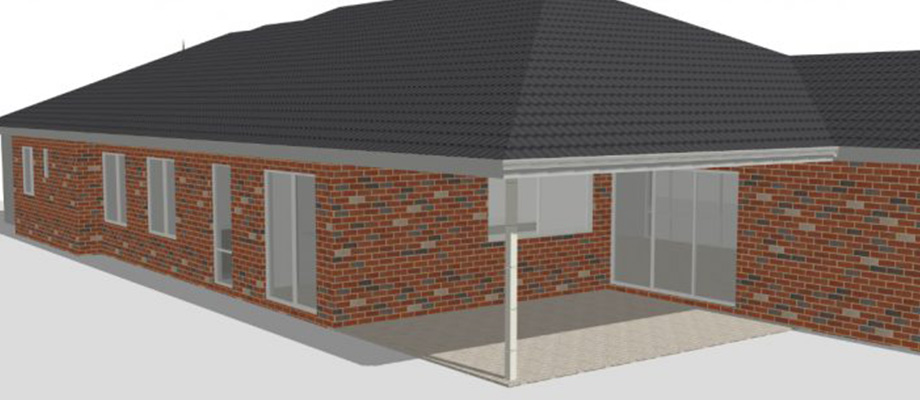
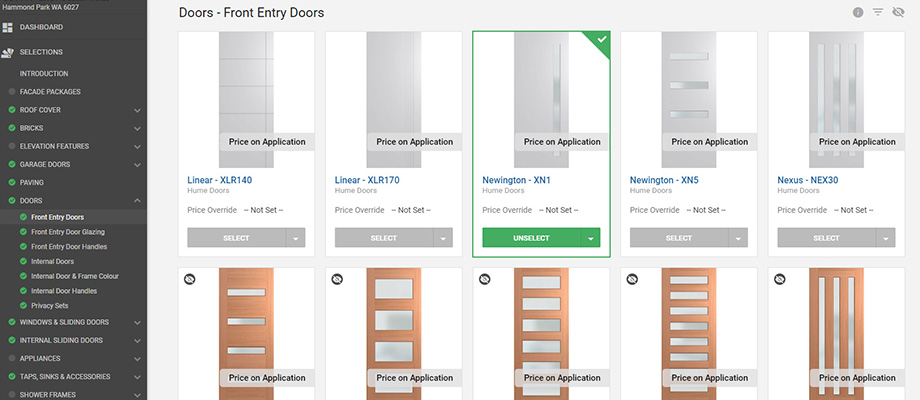
We’ve now enabled the client to select the selection to choose by just clicking on the relevant part of the 3D model. There is now no need to hunt through obscure selection names to find the right one.

Just click on the relevant part of the 3D model and it will jump to the first selection applicable to that section.

This improvement also is applied to the Model admin screen making it much, much quicker to do any manual mapping, as you can now just click on the section not mapped and it will jump to that item in the list automatically.

Other 3D improvements

  1. The client is now able to toggle the display of the selection description within 3D mode.
  2. The 3D model is now visible after the selections have been completed, enabling the client to still enjoy the view of their beautiful new home.


2. Selection Notes
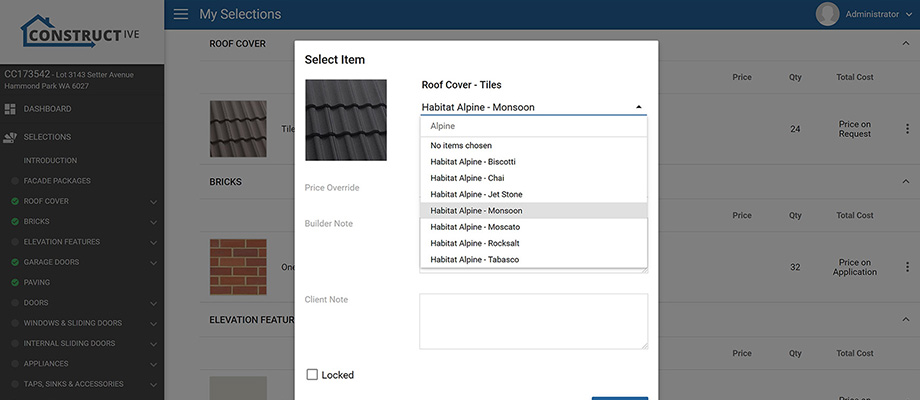
Since introducing the builder notes system into selections, it has been well used. We’re now enhancing it further to allow two different types of notes; client notes that they can make at home, and builder notes that only you as builders can make. This will help your client make notes for themselves, but still enable you to do the formal writeup note to go on any documentation.

I advise you to encourage the client to enter any notes as they go through online selections prior to the selections meeting.


3. Copy Selections
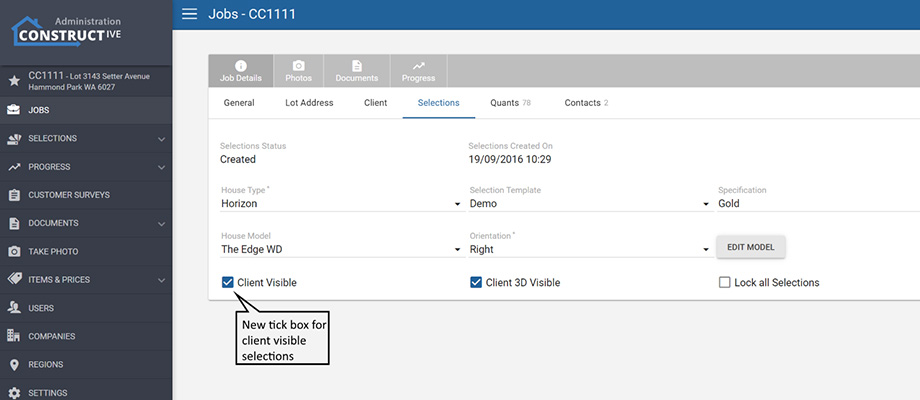
On the job details page you can now copy selections from another job to the current job you are looking at. An often requested feature to allow unit selections to copy from one another.

The two jobs must be the same selection template though!


4. Job Quants Improvements
Job quantities are the driving force behind making the selections specific to the job. Increasing customer satisfaction by not showing them irrelevant information.

Copy Area
It is now easy to create a new area with all the same quants as another area, just click on the three dots next to the area you want to copy from and then select the name of the new area. Easy!

Delete Area
Remove many quantities in a single click by clicking on the three dots and remove a whole area in one go.

Filtered Dimension Types/Quantity Types
No longer will you see irrelevant dimension types that are not in your possible list of selections. It now will show you a much smaller list based on what you use! You can still get back to the much longer list by ticking the box to show all. Again this is designed to make the process of job prep much quicker.


5. Multiple Photo Upload
Finally but by no means least, we have enabled multiple photo upload in one go. Making it much easier to upload large numbers of photos in one go. Supervisors rejoice!

Featured Post
Constructive Update 4.21

Constructive 4.21 – Job Photos, Documents and Selections Improvements

1. Job Photos & Documents

Job Details screen now has two new pages.

Job Photos
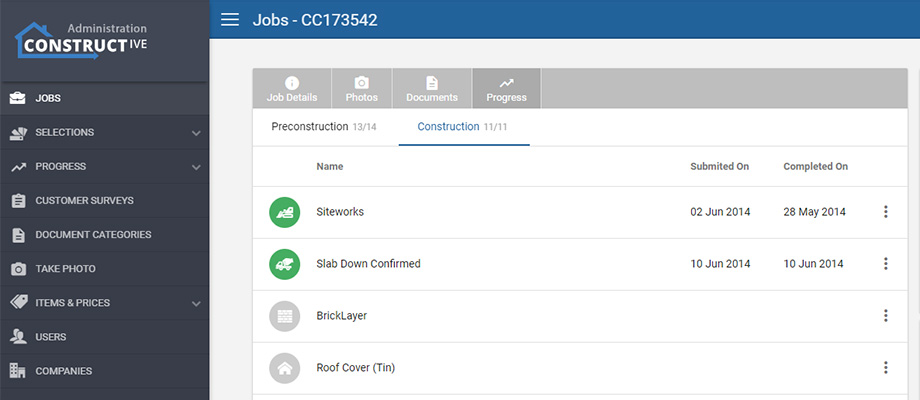
The photos page shows all the photos visible to the client in the customer portal. It gives you three important controls: upload new photos, delete photos and edit the description of photos. For most of you the photos come direct from a source system, but if you are uploading directly to Constructive this gives you far more control.


Job Documents
Documents are typically uploaded from your internal document management system. With the new documents screen, you can now manually control documents, by deleting, uploading new documents and editing descriptions and names of existing documents. To add documents just click the big plus button!

With this new control comes new responsibilities. Please do not edit anything if you do not know the outcomes (especially on live sites). Please feel free to discuss any changes prior to at least the first couple of times!


2. Selection Improvements

We’ve made lots of enhancements to Selections:

Reload Selections Performance Improvements
As an action you do repeatably and has in the past taken some time, we have now optimised the reload selections to dramatically improve the speed.

Selection Template Editing Improvements
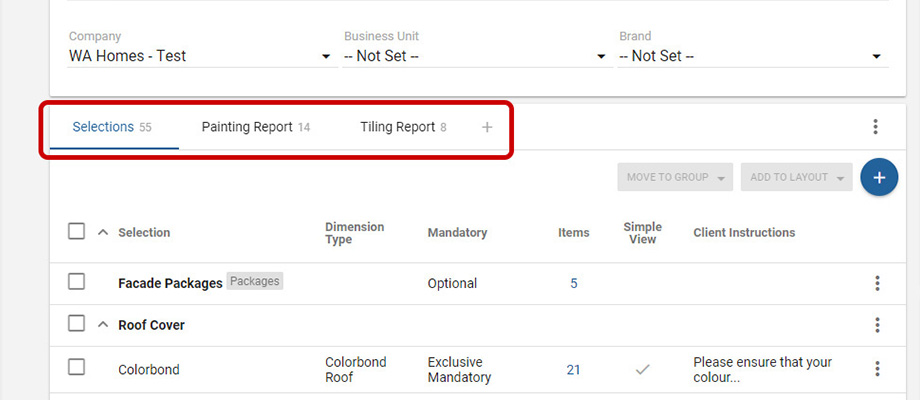
We’ve taken valuable feedback on the selection template edit screen to bring in two often requested features: drag and drop reordering of the selections or selection groups and expand and contract of the selection groups themselves making long scrolling a thing of the past.

Sell Price filter by Business Unit and Brand
We now have additional filters on the sell price screen to just filter to prices applicable to a specific brand or business unit. Please note this will still show those prices that are generic as they still apply to this business unit / brand.

Available Items Report Includes Choice Grouping
We added the ability to group choices together to make it easier for the client, and with this release, we have added these groupings to the invaluable ‘Available Items’ report.

Manufacturer Override
We can now override the manufacturer we display to the client under an item. This can be done at the Selection level (all choices show as the nominated Manufacturer/Supplier) or at an individual choice level. This gives you maximum control and deals with the reseller scenario.

Featured Post
Constructive Update 4.19

Constructive 4.19 – Editable Settings and Updated Users Page

1. Editable Settings
Company administrator level accounts will now have the ability to view all settings and edit some settings. Thus bringing far more control into your hands. If you want to update the FAQ or instruction texts you can do it right in Constructive.

With this new control comes new responsibilities. Please do not edit anything if you do not know the outcomes (especially on live sites). Please feel free to discuss any changes prior to at least the first couple of times!


2. Users
We’ve renamed ‘Access Management’ menu option to now be called ‘Users’. Hopefully, this explains better the function.

Featured Post
Constructive 4.17

Constructive 4.17 – Job Listing and Job Details

1. Job Listing
We have introduced a job listing page, that sits alongside the job search function. The listing gives you the ability to do some basic filtering and text searching and immediately shows some of the job information.

As part the of the job listing we have given you two actions:
1. to open the Client view straight from the list (button on far left of each row) and
2. to open the job details page (the three horizontal dots on the right-hand side of the row).
This navigation is a major improvement on the ease of navigating to the client view (reduction of at least three mouse clicks).

You’ll notice that if you use Online selections there is a column to show you the progress of the client through their selections. We are aiming to give you the information you need as quickly as possible. This widget shows the selections made of mandatory at the top, middle row is the optional selections, and then the selection status below.


2. New Job Details
As part of the job listing, we have revisited the job details page. It now provides a much more user-friendly layout and has action buttons in a more accessible location.

We have also removed the ‘Set As Target’ button so that to open a client view of the job just takes one click in the top right-hand corner.

Tabs at the top now replace the old hidden tab menu to the side, and we’ve put more on each tab.


3. Job Quantities
As part of the new job details page, we now have a new job quantities page. This is much easier to use as you can now see all the quants on one page, and they are grouped by the area of the house.

Altering quantities is easy by just overriding the current quantity. Removing the quant is as simple as pressing on the x.


4. Security Role Changes
We have renamed the old security role of Prestart Consultant to be called Contract Admin. Please note this does not affect anything the client sees. The Contract Admin security role has all the permissions required to manage a job and alter required information. If a user needs to edit a job please use this security role.


5. Additional Selected Items Reports
To enable varying print off of the online selection choices, we have created additional formats that can be customised to your requirements (think Construction, suppliers/trades and scheduling/production estimating team). Please contact James Salt to discuss setting up these additional report formats. These will show under the Reports button on the job details page and are not visible to the client.

Featured Post
Constructive Update 4.16

Constructive 4.16 – 3D Model Improvements and Package multiple choice

1. 3D Model Improvements
We’ve greatly improved our 3D model mapping screen, and added functionality to hide specific 3D shapes on a job by job basis.

This also is building the groundwork for even more intelligent auto mapping of 3D elements to selections.


2. Multiple Package Options per Selection
Further enhancing packages, we now allow multiple options from a single selection in the same package. Once the package is selected the client is then presented with a further choice of which of these choices to choose.

Once selected this outstanding package selection is shown using an exclamation mark, indicating to the client there is still selections to resolve.

A choice in a package can also now be specific to an area of the house, so a sanitaryware package could have different taps between the ensuite and bathroom, even though they are the same selection.


3. Selection Group Progress
We’ve improved the auto ticking of the selection group so that it now ignores hidden selections when calculating if the group should be ticked. Giving a better progress indication to the client.


4. Client Hidden Choices
We can now auto-hide specific choices from clients. So we can have additional choices only the selections consultant will see, and they are hidden from the client when they are making selections at home. Think of additional upgrade items that need discussing or the catch-all ‘Other’ option that you don’t want to show the client.

Just tick the hidden tick box next to the item, and the choice will be auto hidden from the client.


5. House Types Admin Screen
We’ve given the house type maintenance screen some love, upgrading its user interface with our modern controls. You’ll find it more user friendly.

Featured Post
Constructive 4.13

Constructive 4.13 – Pre Deposit Selections and House type pricing

1. Pre Deposit Selections
We’ve added in a small but vital piece of the puzzle allowing a job to change job number. This allows for quotes to then later be turned into jobs. The applications are endless for this and will mean we are able to extend into the sales cycle, bringing the brilliant customer service tools to bear during sales.


2. Pricing by Housetype and Job Dimension type
We’ve extended sell pricing so that you can define specific prices for house types. For example a specific upgrade package might be priced at the Housetype level as each housetype would be a different price. We have also enabled specific prices per Dimension type, so that a Sink mixer tapware might be different price in the laundry versus the Kitchen due to different labour costs.

We will hide these two new options, unless you really want to use them to keep the pricing screen as simple as possible. So just click on the right arrow to see and edit these settings.


3. Select and apply to all areas
A small but very useful improvement. The client is now able to select a choice and have it apply to all areas. For example choose a basin mixer and apply it to all rooms (Bathroom, ensuite and powder) in one go. Just make sure you’re making selections against each area.


4. Message reply to clients email address
When a message is sent from the portal by the client, the email that is generated now if replied to automatically goes to the clients email address. This makes it a lot easier for the customer service staff to action immediately.

Featured Post
Constructive Update 4.12

Constructive 4.12 – Selection Packages and Choice Notes

1. Selection Packages
A little-used feature selection packages has got a major upgrade, enabling you to setup packages of selections right in the selection template edit screen. We’ve also greatly enhanced the client facing user interface to better show what is in the package.

We now also allow any number of package selections across the selection template, so you can have an external as well as internal package selection.

A package can have a sell price to enable you to give package discounts. But we’ve built the smarts in behind to say if an item from the package is unselected then the package price is removed and it goes back to the original individual pricing.

All of this is easy to setup in your selection template. Just go to add a new selection and create a new package selection. Then add items to the package that are already in your selection template. Please note you cannot add more than one item from each selection.


2. Selection notes
A small feature in terms of the user interface change, but a massive feature for your selections consultants. Now on any selection you can put a notation against it, clarifying position, disclaimers or anything else your selection consultants desire.

This is stored against the item and will show on the ‘My Selections’ screen, as well as the Selected Items Report. You can customise the selected items report to suit your specific write up requirements.

We believe this will begin to change how you use online selections.

Featured Post
Constructive Update 4.11

Constructive 4.11 – Client Surveys

1. Outstanding surveys now on night Activity update email
We’ve now added a list of the surveys that are awaiting a response to the activity update email generated in the portal. This means every time you alert the client to new progress, photos or documents, it will also remind them to complete any outstanding surveys.

This drives significantly higher response rates from your customers without pestering them with new emails.


2. SurveyMonkey Integration Upgrade
We have now upgraded our Survey Monkey integration to get the survey completed notification back to the portal immediately, so the client will instantly see in the portal that the survey has been completed.


3. Additional Survey variables
When requesting the survey Constructive can automatically pass any of the following information to the survey tool to allow better analysis of root causes or actions to take.

Sales Consultant
Contract Administrator
Client Liaison
Supervisor
Business Unit
Brand
Region
Job No
Client Name
Lot Address
Finance Broker
Selections Meeting Date and Time
Selections Consultant

4. Updated Survey Admin screen
We’ve now added the ability to search your Survey Monkey surveys by text when setting which survey should be sent at each progress completion trigger.

Featured Post