Product Updates

Constructive Intelligence Analytics update 1.1

Intelligence 1.1 – Documents and Additional Job Details Drill Through Fields

Features: New Documents Page and Job Details Drill Through Fields Additions

constructive intelligence documents screenshot

1. Documents Page
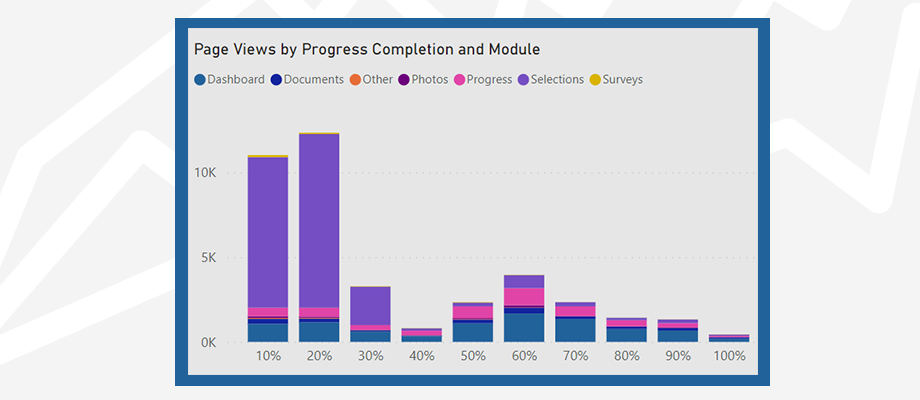
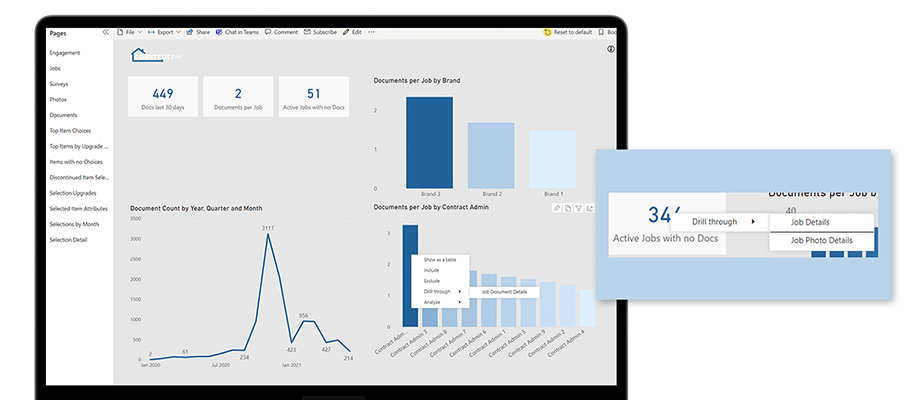
This release, we’ve introduced a new feature – Documents, giving you deep visibility into the documents uploaded to jobs in Constructive. Documents analysis can help you ensure compliance and approval paperwork is consistently being uploaded to jobs.


2. Documents Counts
You can now see counts of documents added in the last 30 days and active jobs that have no documents uploaded.


3. Documents Detail 
Drill through to Job Details from Active Jobs with no Documents. See Documents per job by Brand and Contract Admin and the Document count over time.


4. Document Counts per Contract Admin
Drill through from a Contract Admin to Job Document Details to view the document count for each job they are assigned to. Click the Job Link to see the job in the Constructive admin portal.


5. Other Features Added
Additional fields Job Status, Sales Person and Job Link have been added to the Job Details drill through page.

constructive intelligence documents info tip


Tip!
Unsure of the content on a report page? Simply hover over the info icon ⓘ in the top right of each page to see the page definitions.

Featured Post
Constructive Update 5.9

Constructive 5.9 – Email Templates, Dashboard Text, 3D Objects, Model Mapping & Survey Features

Features: Email Template Editability, Dashboard Announcement Text Area, 3D Objects, Model Mapping & Survey Features

editable email content


1. Email Template Editable Content
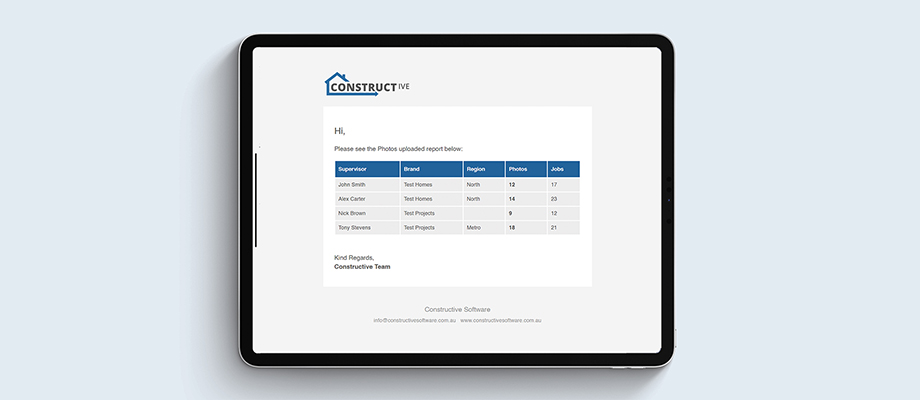
You can now manage the content of email templates yourself! Easily update the text of your progress milestones and other emails as required, preview the format and send yourself a test email to confirm you’re happy with the changes. Create new emails by copying previous email templates and updating the content via the HTML editor.

dashboard announcement text


2. Dashboard Announcement Text Area
You can now create HTML supported text announcements to display at the top of all client dashboards, a great place for a welcome message or announcements you want to highlight.

3d highlight feature


3. 3D Object Highlighting
Our External 3D rendering has been enhanced to super accurately highlight objects in the Model edit screen. Easily identify objects on the models for selection requirements.

3d highlight feature


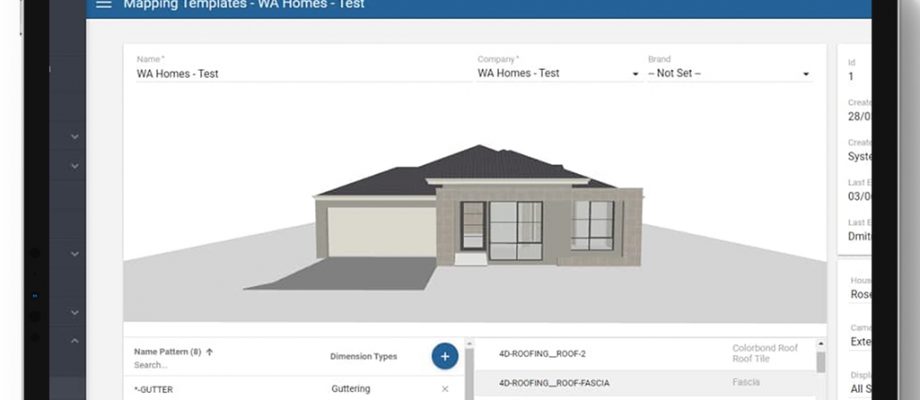
4. Model Mapping
When processing a 3D Model, you can now manage the Model Mapping integration yourself.


5. Survey Features
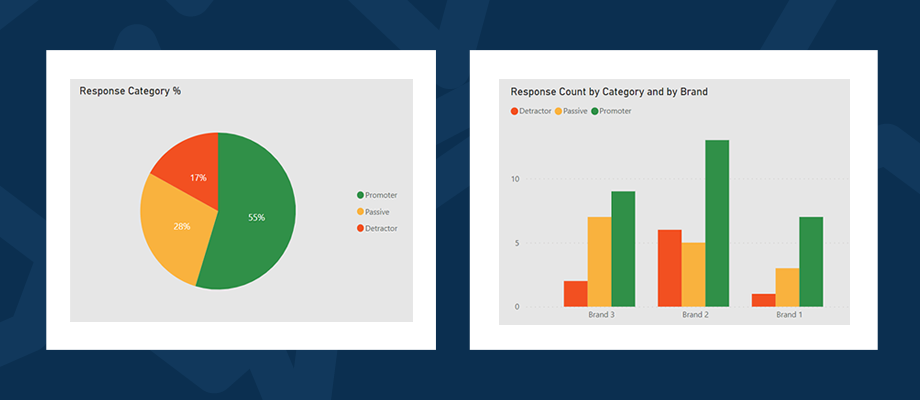
Survey Monkey integration is now supported and you can now store clients’ answers for NPS questions.


6. Registration Email
You now have the ability to trigger a Registration Email, separate to a Registration Reminder Email.


7. Bug Fixes
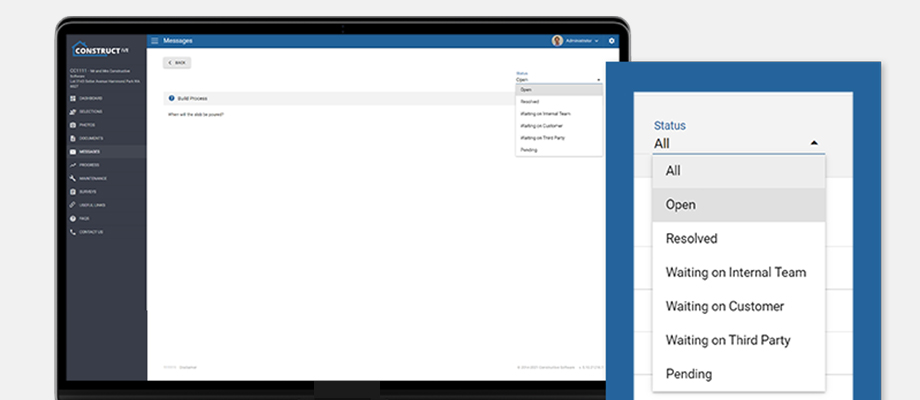
Messages: We have resolved small issues around messages in email replies, setting the target job upon message opening and resolved/unresolved status functionality.

Message import: When messages are imported through the integration, new lines are shown in your user interface.

3D: You can now successfully switch between jobs in Selections without breaking the 3D model navigation, single garage doors now display correctly as well as some general model display fixes.

User avatars: now display at the correct size after cropping.

Job Selection choices: We have now prevented choices duplication.

Integration: Photo Import API. .exe and .dll files are now blocked from uploading.

Customer name in sidebar: When logged in as a company user, customer name now displays in the sidebar.

Job details: Saving a job now saves contact user phone correctly without duplication. ‘Sending Password Reset link’ modal window now shows the user email where the link will be sent.

Notifications: Fixes around regular notifications for not-registered users.

Featured Post

Constructive 5.8 – IFC 3D Import & Selection Search

Features: IFC Import, Job Quants Selection search, Multiple Mandatory Selection Type and Material Rendering Improvements


1. IFC Import
You can now drop IFC exports from Revit or Archicad into Constructive and it will automatically process them into interactive 3D visualisations in 2 minutes (not a small feat!). Just upload the file to the job under job documents as the HouseModel category and let Constructive do its magic.


2. Job Quants Selection Search
You can now search for specific selections on the job quants page, so you can see which quants to remove to get rid of a specific selection.


3. Multiple Mandatory
You’ve now got a fourth selection type of multiple mandatory (you’ll need to select at least one selection). This now gives you the option to allow multiple selections but require at least one before finalising the paperwork.


4. Material Rendering Improvements
Enhancing the 3D further with reflective and metallic surfaces, vital for taps, basins and sinks. I wonder what’s coming next….

Featured Post
Constructive Update 5.6

Constructive 5.6 – Selections – Preselected Choices

Features: Preselected Choice Editing Screens

1. Preselected Choice Editing
An early Christmas present, we’ve now upgraded the Selection Template Edit Screens to allow you to control the preselected choices.


You can nominate the preselected choice to be loaded on selections creation by specification and optionally for specific areas of the house (the default is for all areas). If editing preselections, please check with your Customer Success Manager to ensure that preselections are turned on for you.


2. Selection Reports of Only Upgrade Items
When generating reports from the Job details screen, you will now be prompted to either leave all price categories ticked or remove the pricing categories you don’t want to show on the reports. This is really useful to print off a list of only priced items as a backing sheet to a variation. 

Please note to generate the reports exactly like you do now please just leave all tick boxes ticked.


3. Small Bugfixes
We’ve resolved several small bugs around preselections and duplicates, as well as rare conditions of duplicate selections made.

Featured Post
Constructive Update 5.5

Constructive 5.5 – Help System, Email Tracking and Selections By Area

Features: Help System, Multiple Email Address Per Client, Email Status Notifications, Job Cancelled actions and hidden progress stages


1. Help system
It may be a small icon, but it will provide a lot of power. If you’re a company administrator you will now see a helpdesk icon in the bottom right of the admin pages.


This will bring up a list of the most useful articles and then you can search the knowledge base and create support tickets directly from the help desk widget.


2. Job Cancelled Action
You can now configure clients to be automatically locked out of the customer portal or online colour selections if their job moves to the cancelled status. This can also trigger an automatic email to the client. If you want to set this up please talk to you Client Success Manager.


3. Email Status Notifications
We now track every action of the emails sent outbound from the customer portal. You can now see when the email was delivered and then opened by the client. Equally, if the email address is incorrect or the email bounced then we can alert your staff via a notification email, to ensure nothing slips through the cracks. Please contact your Client Success Manager to ensure this is set up for your company and it is going to the right place.


4. Multiple Client Email Addresses
You can now manually configure client user accounts to have ‘secondary’ email addresses that receive all the same email notifications. Just edit the specific user account and add in the secondary email addresses.


5. Client Hidden Progress Items -> Trigger Progress Emails & Surveys
Often we get asked to trigger automatic progress emails or customer surveys based on tasks the client shouldn’t see. Now we can do this via client hidden progress tasks.


6. Selections Group by Area/Room
Last but by no means least, we can now optionally show a switch to group selections by areas first, and then by selection group. This means you can choose to do selections room by room or by Selection Group – your choice!

Featured Post
Constructive Update 5.4

Constructive 5.4 – 3D Landscapes and 3D Selection Menu

Features: 3D Landscapes, 3D Selection Highlighting and 3D Selections Pop up

1. 3D Landscapes
We’ve been bringing jobs to life with their working drawings for some time now, but now we’ve taken the further step of putting the houses in a more beautiful context. You can now add preconfigured landscapes to the 3D models to show of the clients home in all it’s glory.

On the model edit screen (see the new menu in the admin screen called 3D) you now have a drop-down to select from a list of landscapes. In the Model edit screen, we’ve done a lot of work to bring the experience in line with what the client will see. So no surprises, you’ll see shadowing, garage doors, and entry doors as the client sees them, no need now to jump to the client-side to do final verification.


2. 3D Selection Highlighting
Obviously being housing geeks we know what a finial or barge & scribes are, but the clients find this much more difficult, now when putting your mouse over a surface (e.g. roof cover) it highlights the relevant bits that the selection covers. Simple but very effective. Again we have applied this to the Model edit screen as well.


3. 3D Selection Toggle Button
A much wished-for option to avoid the need to go back out of 3D view to ‘unselect’ something. You can now just click a second time on a choice in 3D view to unselect it. Simple!


4. 3D Selections Pop Up Menu
When clicking on an area where two or more different choices can be made, it will now pop up a menu to allow you to go to the relevant selection. This is awesome!


5. 3D Optimisations
There has been a massive amount of work under the hood optimising the 3D view and the way we get 3D models into Constructive, all of which you won’t see, but trust us it was worth it!

Featured Post

Constructive 5.3 – Package View, No Price Change and Reset Job

Features: Package View Enhanced, No Price Change Choices and Job Selection Admin Actions

1. Selections – Package View
Over the years the package view has been used for more and more choices, and its usage has grown past the simple colour boards it once did. We now see packages with more than 100 choices within them – all making life easier for the colour/prestart consultant. We’ve now caught up and greatly improved the non 3D package view to not duplicate items when in multiple rooms, and to take up less of the screen for each item.

To see the names hover over the choice, or click ‘more details’ to expand out to the old (more detailed view).


2. Selections – No Price Change Choices (Negative)
A greatly requested feature. We now have the ability to distinguish between items that are ‘Standard’ for the specification and those that are a ‘No Price Change’ (lesser cost items). To set this up please discuss this with your Customer Success Manager. By default, no action is required and Constructive will show as it did before using ‘Standard’ for the choices with a lesser price than the ‘Standard’ item for the specification. We envisage that you would alter the No Price Change terminology at the selection level. As such you can now set this in the selection edit screen.


3. Selections – Standard Terminology
Along with no price change we can also change the wording we use for ‘Standard’ choices (the same price as the ‘Standard’ choice in the specification). This can be set on the same selection edit screen as the No Price Change option


4. Selections – Package Price Override
The same way you can override the sell price for a choice, you can now do this for a package.


5. Selections – Job Admin Actions
We’ve now added some more job admin functions and had to create their own dedicated menu in the job details screen

Reload Selections – With or Without Recalc Prices
When you trigger reload selections you can now untick the price recalculation for selected items. This enables you post colours/prestart meeting to reload to get the new choices, but not have the prices move on you.

Recalculate Prices
If we just want to recalculate the prices but not to recalculate the choices, this is the button for you. 

Copy Selections
Copy the selections made in another job into this job. Please note if the selection doesn’t exist in the destination job then it won’t copy the selection choice in. 

Reload Quantities
Reload the quantities from the base house type, and remove any edited quantities.

Reset Job Details
This is the nuclear option. This gives you the ability to completely remove all choices made and all edit job quantities. You can now start from scratch without having to raise a support ticket.


6. Selections – Note Required
We now only need one type of note, builder or client. It will now accept either the builder note or the client note as satisfying the note required choice.

Featured Post

Constructive 5.2 – Progress Template and Price List Extract

Features: Progress Template Improvements, Progress Emails Setup Screens and Price List Export from Selection Template


1. Progress Template Improvements
A major improvement in the visibility of your customer portal set up, we’ve enhanced the progress template page to show you the key information you need. You will now be able to see if a progress task triggers a customer survey, a progress email, or the addition of a document. At a glance, you can see the customer experience journey that your customers will experience.

When editing a Progress Task you can see the multiple tabs to see the details of what is triggered from this task and also be able to jump to the relevant edit screens.


2. Progress Email Setup Screens
Up to this point, we’ve been able to set up automatic progress emails to be sent to the client via task completions, but there hasn’t been an edit screen for you to be able to manage yourself. We’ve now plugged that gap.


3. Job Contact Hidden Option
Not always do you want to show the Sales Consultant to the client, but you might still want them to be able to login to see their clients. You can now do this by hiding the relevant roles from the client.


4. Job Contact Role Name Fix
We have now made sure that wherever you see a job contact role name (e.g. Sales Consultant or Supervisor) the terminology is consistent for the client and your staff. We used to have the issue where Job Details would show the Constructive name for the role. We’ve now squashed this ‘bug’!


5. QR Code Report by Template or Selection
You can generate QR codes from the selection template in a far easier way, no longer one by one. You can either print off every QR code (at Selection Template level) or tick the ones you want to print off within the individual selection. Just click the relevant buttons on each page.


6. Extract Pricing for Selection Template – Price List Report
Everyone knows the more you see the pricing the easier it is to manage, and there is no better way for an estimator to see the pricing than in Excel! So to make life heaps easier we’ve added a button on the selection template to download the whole selection template with pricing (based upon some selections – brand, housetype, specification, etc). This enables you to download and review the pricing against each other in a convenient way.

In the Price List Report Settings you can optionally choose the Business Unit, Brand and/or Region to generate the prices for (if any of these have unique pricing). You will have to define the Housetype and specification (denoted by *), as these are required to generate any pricing. The format can be PDF (a report) and CSV (excel format). 

Featured Post