1 — 3D improvements: Material rendering, lighting and performance
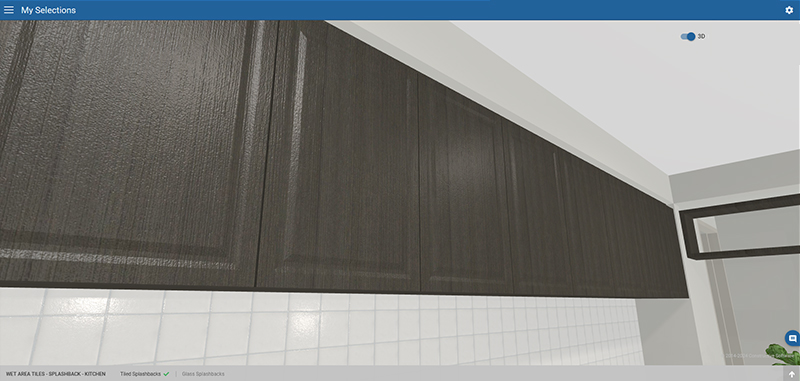
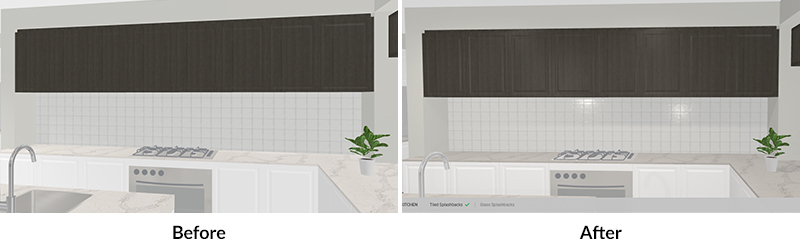
In this release, we’ve greatly improved our 3D Selections product with the adaption of a new 3D shading material workflow. PBR (Physically Based Rendering) has created a more accurate and realistic rendering of materials.
Lighting has been enhanced to use luminosity and kelvins of real lights resulting in lights appearing physically correct. We’ve also added Bayonet lights (point lights) — light sources illuminate and cast shadows in all directions.
3D has been optimised for improved performance, increased frame rate and faster loading times (approximately 38.5% decrease in draw calls and approximately 11% decrease in GPU memory).
All these improvements make the 3D Selections experience faster, and more accurate, for your clients when considering selections, materials and colour schemes for their new homes.
2 — 3D – Auto-assign Pre-made Models
You now have the ability to auto-assign Pre-made Models depending on House Type and Elevation combinations — allocate kitchen styles and bathroom styles based upon your House Types.
Contact your Client Success Manager to find out more about setting up Pre-Made Models.
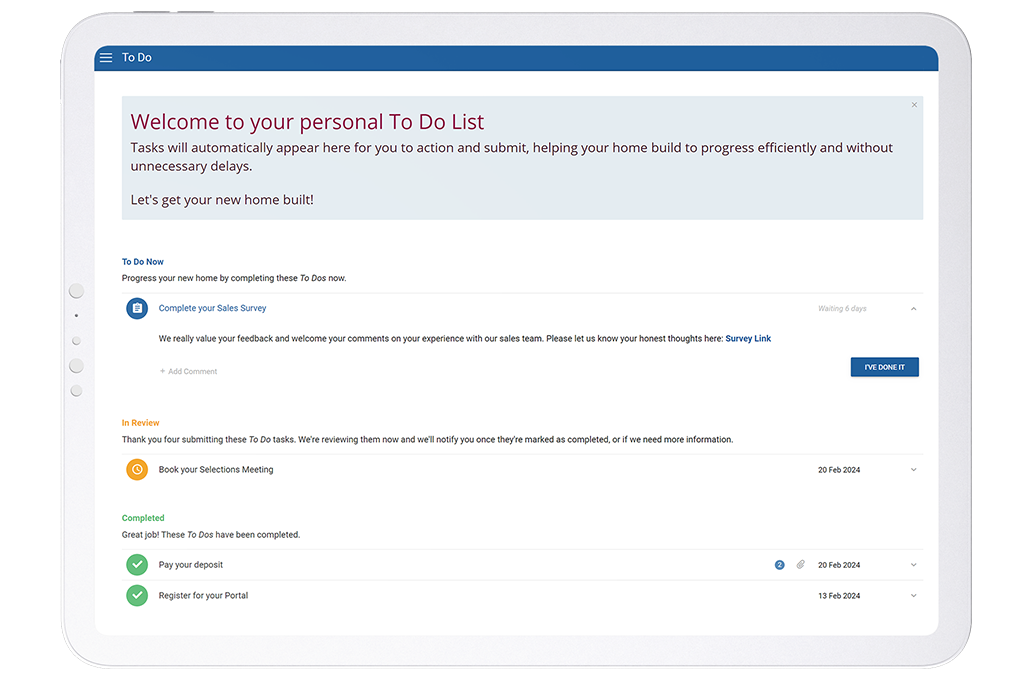
This release, we’re introducing a new module — To Do List. A free add-on to Customer Portal, To Do List is an actionable list of everything your clients need to do — now — to progress their home build.
1 — Customer Portal — To Do List
To Do List drives your clients to action their responsibilities. It removes the need to chase up clients manually, reducing delays and missed deadlines, saving you time and resources.
As clients action their To Dos, tasks move to an In Review state. Once you’ve checked their submission and marked it as complete it will be ticked off as Completed, improving customer experience by delivering a satisfying sense of progress.
Client View — Changed order of Client Name and Job Number
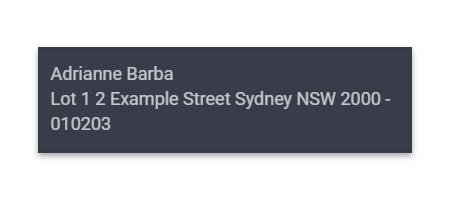
In the Client View only, we’ve changed the order of the Job information in the top left-hand navigation to Client Name and Surname, Address and finally the Job Number. This small change helps clients feel valued as individual customers and not ‘just a number.’
Note Admin View retains the previous order of Job Number first for ease of administration.
Progress Emails Settings — Is Selections Visible
Previously, column 5 was titled ‘Is Prestart Created.’ We’ve updated this title to read ‘Is Selections Visible’ to be a more universal terminology.
Maintenance — Allow selection of a Unit Job Number if the Job is a Parent of other Jobs
In a Project Job, you can now select which Unit Job Number you are lodging maintenance defects for if the Job is a Parent of other Jobs.
3 — Bug fix: Area-specific package items now appear
We fixed a bug where packages/package items were missing when those Items had an area specified in a Package.
For this release, we’ve listened to your feedback on the Online Selections Admin screen and implemented many improvements to make your file preparation more efficient.
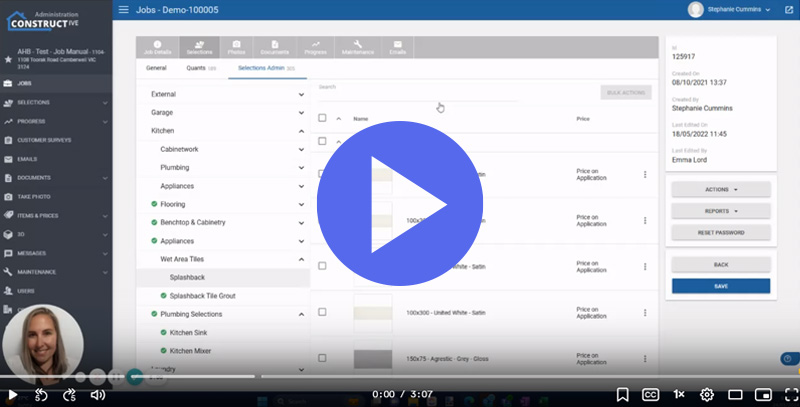
Please view the video below for an overview of the improvements within Constructive 5.36:
1 — Selections Admin screen improvements
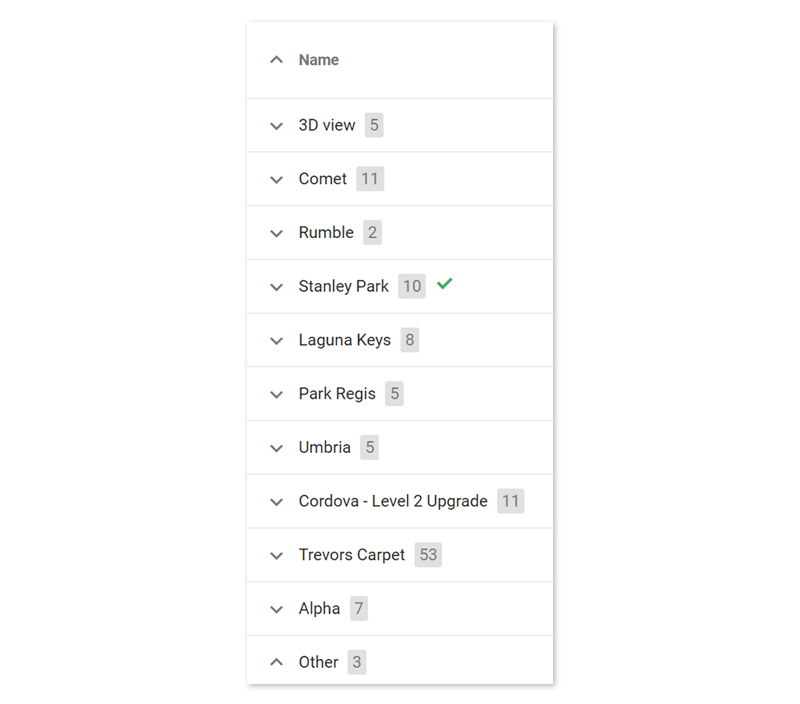
Tick identifies selection madein a Group
Previously, in the Selections Admin screen, it was often difficult to identify where a selection had been made in a Group. Similar to Client View, you’ll now see a tick symbol to the right-hand side of a Group where a selection exists.
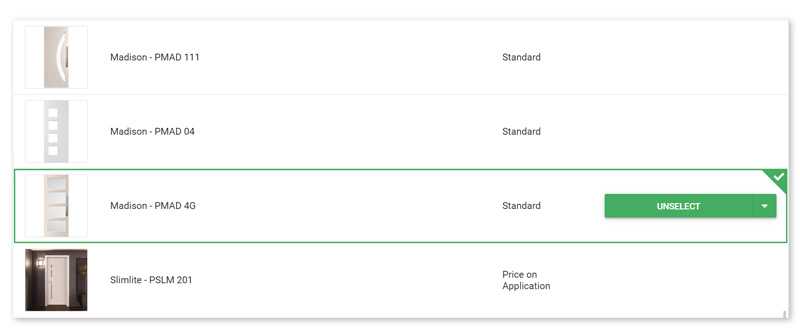
Selection Groups after a selection is made
When selecting or unselecting an item, Groups will no longer auto-expand and return you to the top of the area, removing the frustration if you need to make further changes. Now, when you leave a selection and come back, you’ll be returned to the selection made.
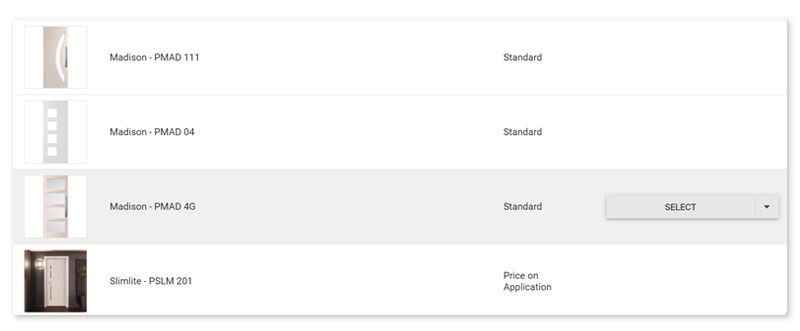
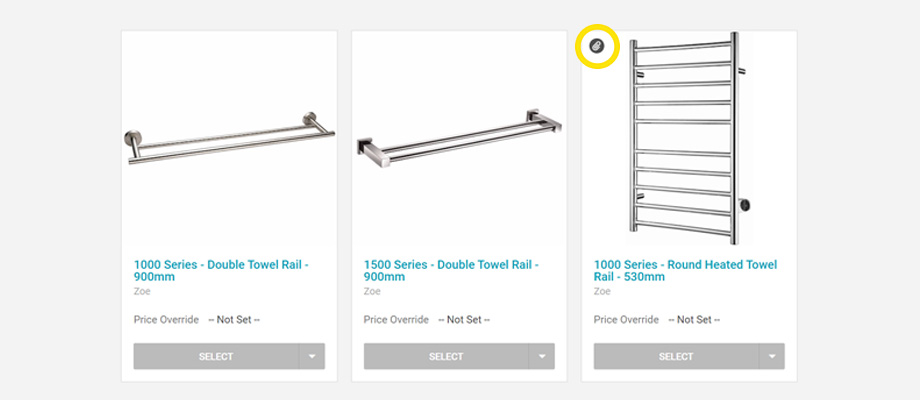
Select button and context menu User Interface updated
Previously, ticking a checkbox on the left hand side, (meant for Bulk Actions), could unintentionally be mistaken for selecting an Item (selecting an Item was previously achieved by clicking the 3-dot kebab menu and choosing Select).
To make this more obvious and user-friendly, we’ve created a Select/Unselect button — with it’s own arrow drop-down menu that replaces the previous 3-dot menu — that appears when you hover/highlight on each selection.
Please note: on iPad/Tablet devices, the Select/Unselect buttons will always be visible.
Bulk price override — Type ‘X‘ to delete and revert to original.
You can now type an ‘X‘ character in the edit box to delete your price override and revert back to the original pricing.
Auto-collapse sections
Sections in the Selections Admin screen now have auto-collapse behaviour, similar to Client View selections.
Packages multiple options ‘?‘ flag
As per Client View, you’ll now see a green ‘?‘ symbol to easily identify Packages that contain multiple options for a selection.
2 — Pricing — ‘Advanced Options’ removed and all Pricing options visible
You’ll now see all the Pricing options in one screen, removing the need for you to make an extra click. We’ve removed the ‘Advanced Options’ arrow that expanded access to set an item’s sell price asarea-specific, set item pricing, or price bands, by specification, or override differential calculations.
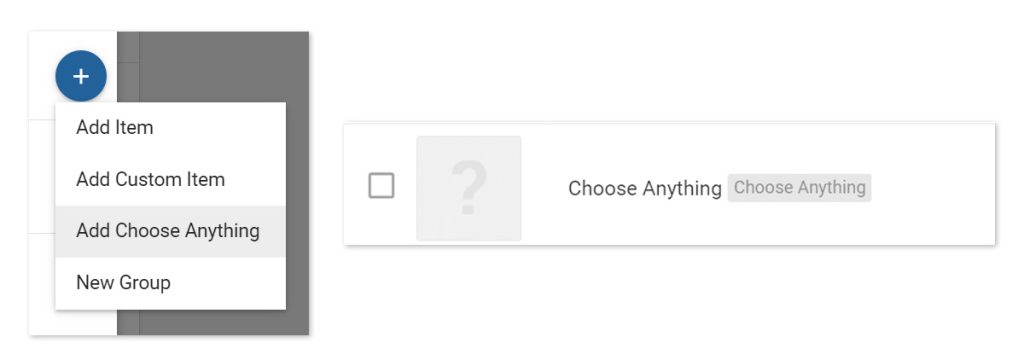
1 — NEW: Online Selections — Choose Anything full Item Library access for Selections Consultants
You now have the ability on a Selection level to flexibly allow access to the full Constructive Item Library so Selection Consultants can choose anything as they wish.
For example, you might choose to allow any tapware from the Item Library, but carpets may remain restricted to certain brands.
When Choose Anything is activated, the full item library is available/searchable for that particular selection.
Please note:
This will not show to end clients.
Choose Anything selections prices are shown as Price Override.
Full Item Library access means Selections Consultants may search and select items that aren’t relevant to the selection.
For more information, please contact your Client Success Manager.
2 — Online Selections — User Interface improvements
NEW Previous button Currently, when navigating their Online Selections journey, clients click ‘Next’ to step forward. We now have a new ‘Previous’ button to step clients backward so they no longer have to navigate back via the template list in the sidebar. Please note the behaviour of ‘Previous’ is the opposite of the ‘Next’ button — it will navigate back to the last selection visible to the user.
Re-direct to My Selections once the final ‘Next‘ button action is completed To improve clients’ user experience, when using the ‘Next‘ button to navigate through Online Selections in a guided way, when they reach the end of the process they’re now automatically redirected to My Selections rather than seeing a de-activated ‘Next‘ button.
Report header ‘Lot Address’ re-named to ‘Address’ Field label ‘Lot Address‘ has been re-named to ‘Address‘ to be applicable to all Jobs.
Accordion collapse by Company in Item Usage sidebar The Item Usage sidebar will now accordion collapse by Company for greater visual ease when reviewing usage of an item within companies and templates.
Type to search in Specification creation You can now type to search the Company/Business Unit/Brand you want to assign your specification to, saving time by no longer needing to scroll through the list.
3 — NEW: Settings features
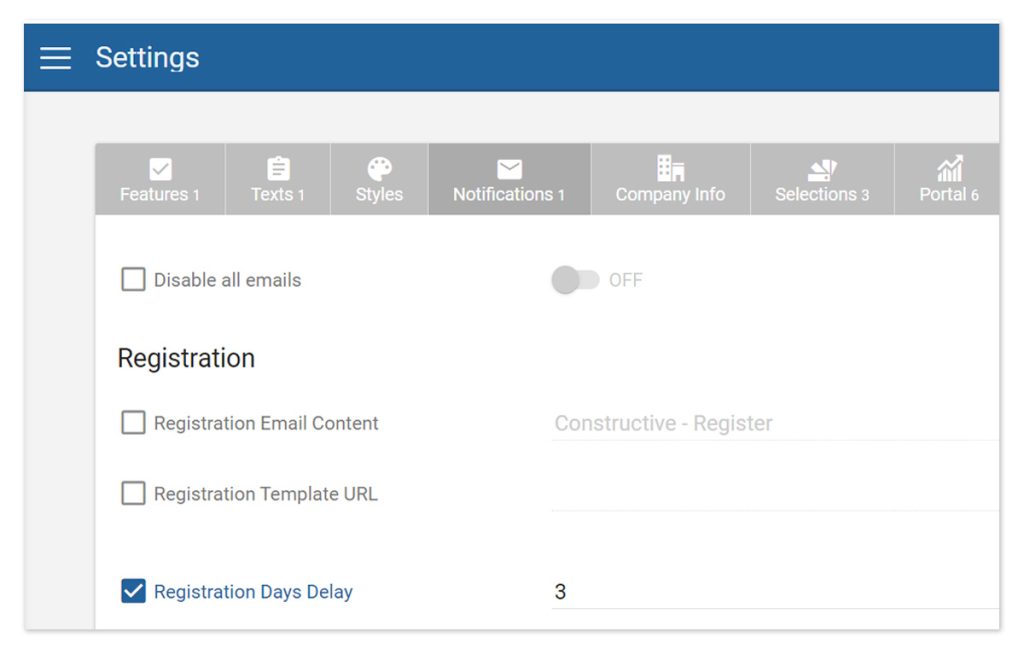
Set Registration Email Delay You now have the option to delay the Registration Email within Settings by Number of Days.
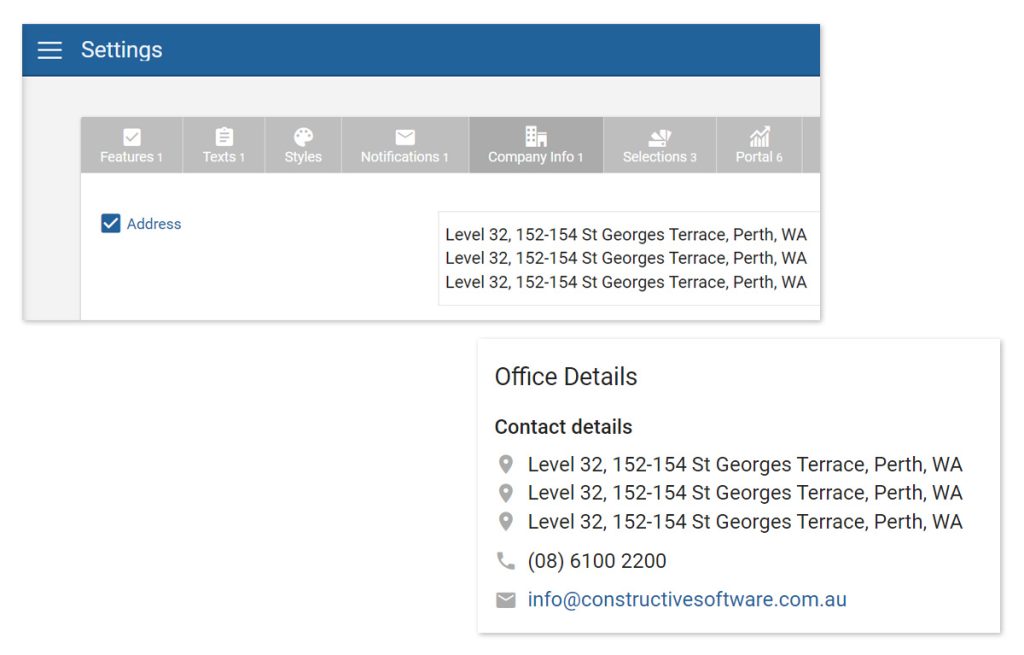
Multiple Lines in Address display The Address field now supports multiple display lines. This is a great option if you wish to include your display locations, and/or don’t want to create new regions when you’re only looking to create multiple addresses. Similar to Opening Hours, each address is separated on an individual line and each new address begins with the address icon.
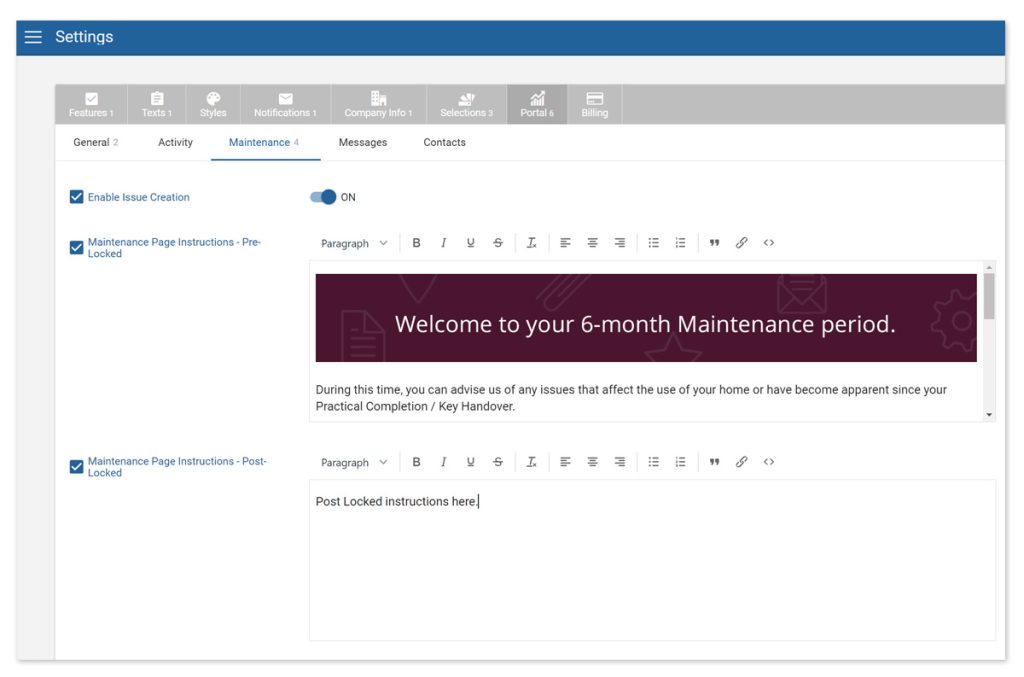
Maintenance Page Instructions update: Maintenance Pre-Locked and Post-Locked Info Messages You currently have an editable area in Settings / Portal / Maintenance called ‘Maintenance Page Instructions’ that appears on the client Maintenance landing page. We have introduced a new field that will display different content after Maintenance is ‘locked‘.
Use this space to inform clients when they log in after the Maintenance Locked Date that they can no longer log issues, and educate them on what they should do about things that fall outside of the maintenance period, for example, structural warranties.
Please note: Maintenance Page Instructions has been re-named to Maintenance Page Instructions – Pre-Locked. This is configured to appear before the Maintenance Ends On date.
The new settings field is named Maintenance Page Instructions – Post Locked. This is configured to appear on and after Maintenance Ends On Date, and/or if Maintenance is ‘locked.’
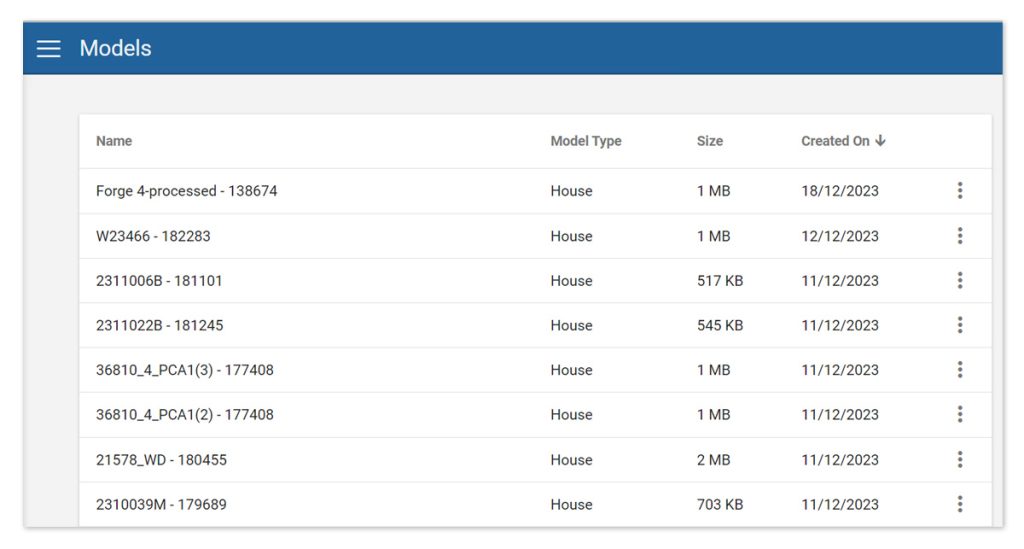
4 — 3D Models — New column: Created On
We have a new, sortable column called Created On that sit alongside existing columns Model Type and Size.
Created On allows you to quickly sort and find your most recently loaded model.
5 — Bug Fixes
Messages You can no longer be sent an empty comment.
House Types When saving a house type after adding an area, if the Save button is double-clicked rapidly, it no longer results in duplicated house area.
Reports Fixed date discrepancies due to timezone differences.
We are constantly improving our software at Constructive and in this release, we’ve listened to your feedback and made many enhancements within the admin areas in our newest module, Maintenance, to create greater efficiencies and free-up your Maintenance team’s time.
When a client is entering a new Maintenance Issue and ‘skips’ the wizard, landing on the review before submitting page, your mandatory requirement rules (eg photo required) and default Urgent issue types are now retained.
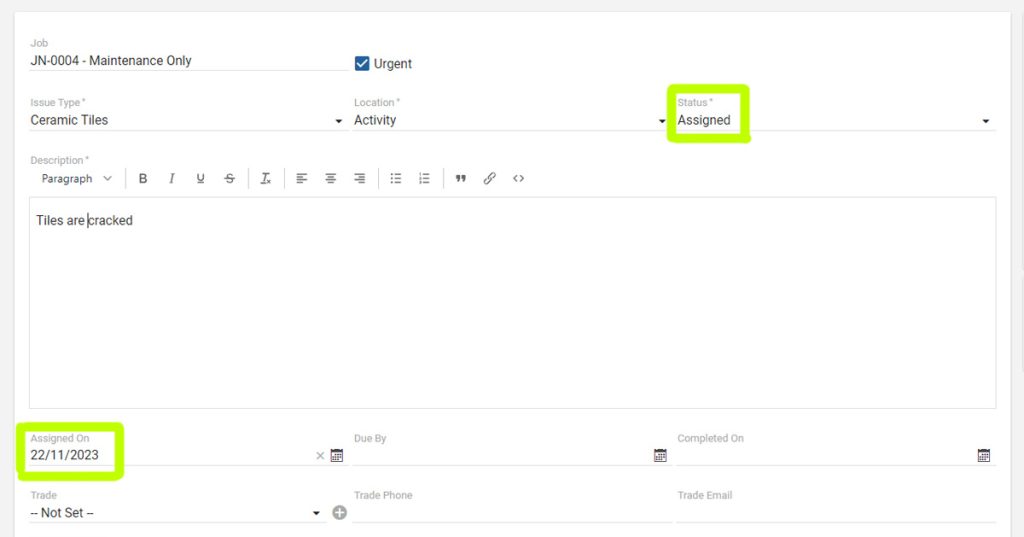
2 — Maintenance – Auto-populate date on status change
When a defect’s status changes to ‘Assigned’, if the assigned date field is empty, the date now auto-populates to today’s date. (Previously, this had to be set manually).
3 — Role permissionsupdate
Role types Maintenance Coordinator and Maintenance Supervisor cannot edit the Maintenance Wizard. They can add a contact to the Job.
4 — Maintenance – New date field: Maintenance Inspection
In Job Details, you can now record a date for a booked Maintenance Inspection.
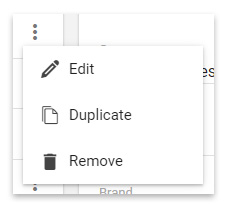
5 — Maintenance – Duplicate an item
You now have the ability to duplicate a Maintenance item to make a copy to work from to save time. To duplicate a Maintenance item, simply click the 3-dot kebab menu on the item you wish to copy and select Duplicate.
6 — Maintenance – New filter: Assigned Contact
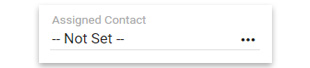
In your Maintenance Items Admin screen, you have a new filter available: Assigned Contact. Individual staff members can now filter to see all their clients’ defects in one place.
7 — Maintenance – New Issue Category
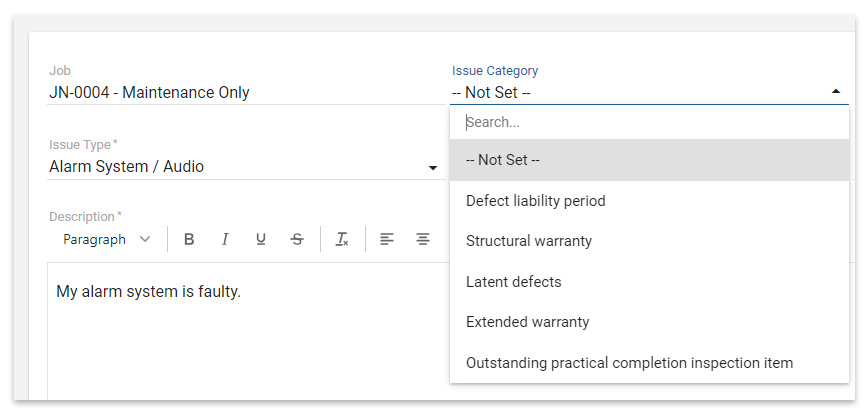
To assist with reporting, you can now classify issues by defect category: Defect Liability Period, Structural Warranty, Latent Defects, Extended Warranty or Outstanding PCI Item.
When an issue is logged, if it falls into the time period before the Maintenance Ends On date, it will be auto-assigned to Defect Liability Period. If the time period is after the Maintenance Ends On date, it will be blank — your Maintenance Coordinator, Maintenance Supervisor or Company Admin will need to manually assign an Issue Category in this instance.
8 — Maintenance – New Internal Note field
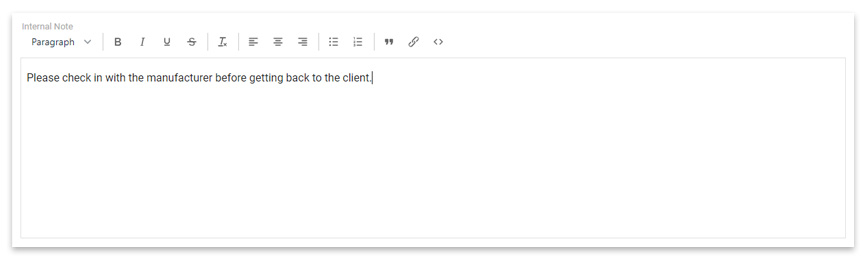
On the Maintenance Item admin screen, we’ve introduced a new text field called Internal Note. Clients cannot see this note, so you can use it to record information for your internal team that you don’t want clients to see.
9 — Bug fixes
Selection Template performance improvement — Performance improved on large Selection Templates load-time.
Maintenance – Issue Description field – Cursor no longer moves when client enters text.
Maintenance – Create another Job selection issue — When entering multiple issues against a job, you no longer have to re-select the Job.
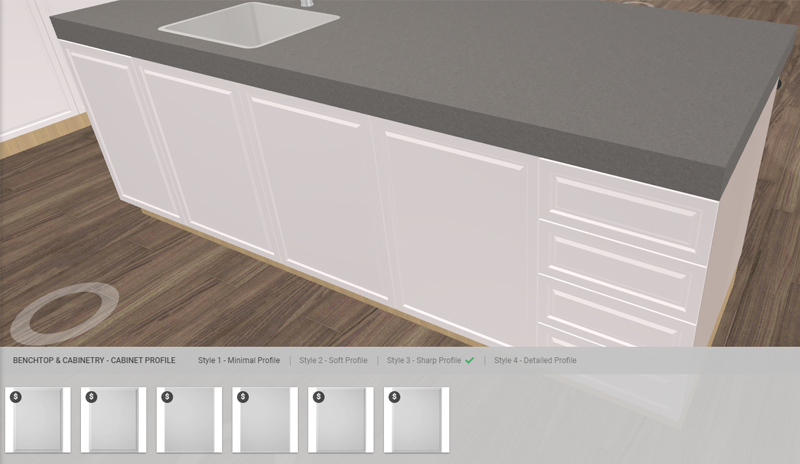
We’ve continued to make improvements to 3D Selections in this release including new cabinet door profiles now available, enhancing and further tailoring the interactive visual understanding of design choices for your clients.
1 — NEW 3D Cabinet door profiles
You’re now able to include further detail to your cabinetry in 3D with cabinet door profiling. Once you have cabinet door profiles set up, clients can simply click the cabinetry and choose ‘Cabinet Profile’. Available door and drawer profile choices will appear at the bottom of the screen for clients to select and instantly visualise.
To set up 3D Cabinet door profiles, please contact your Client Success Manager.
2 — 3D performance improvements
This release contains further performance improvements to 3D Selections, including faster model loading.
3 — Azure AD – Signed-in user visibility
Company Admins now have the ability to see who is signing into Constructive with Azure AD — and who isn’t. This can help you discover any unused accounts or troubleshoot issues.
This release, we’ve continued to improve our Customer Portal by allowing you to bulk upload photos and documents and improving our Progress Template integrations.
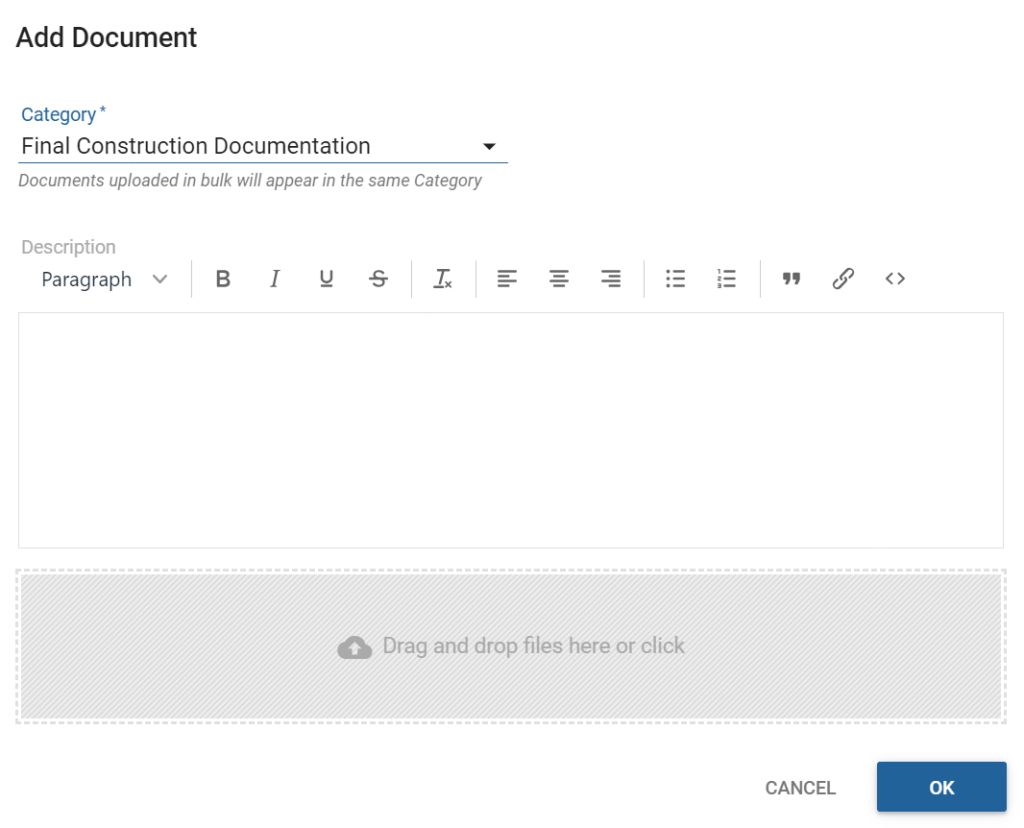
1 — Documents bulk upload
You asked, we listened! Uploading documents one by one in the Job Details screen was frustrating when you had a large volume of documents. You can now save time by uploading multiple documents at once.
Please note, documents uploaded in bulk will appear in the same category selected from drop-down menu.
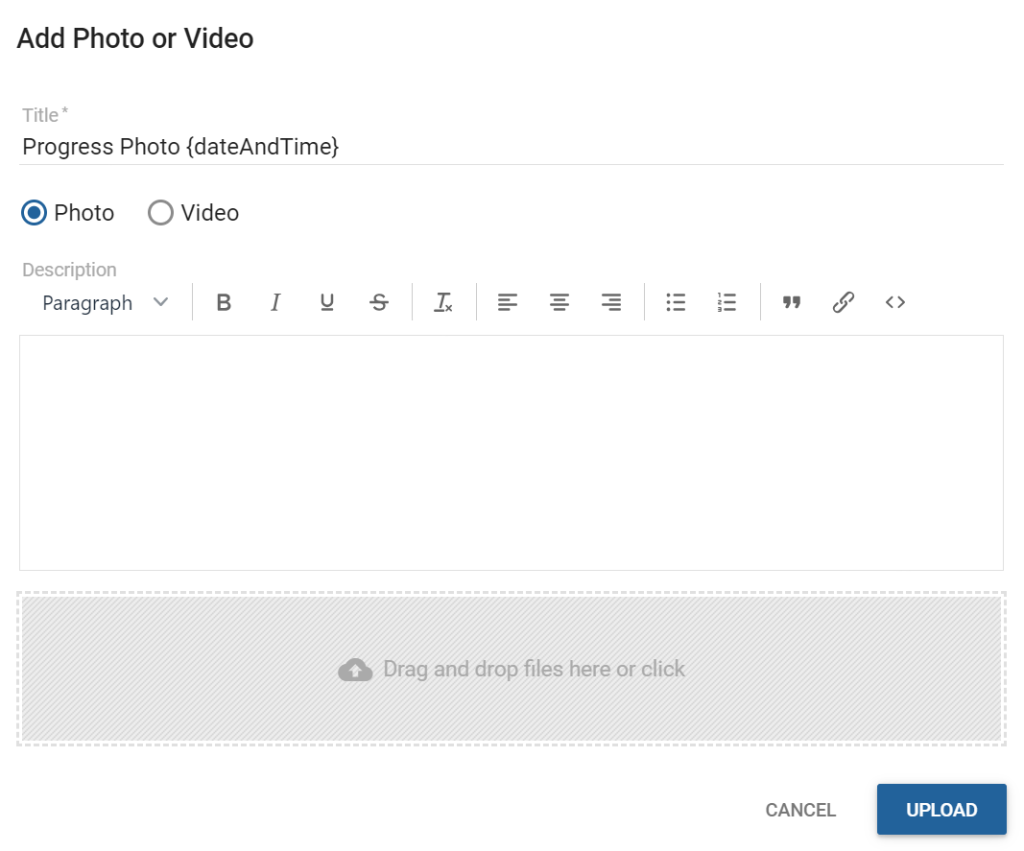
2 — Photos bulk upload
In the Job Details screen, you can now also upload photos to a Job in bulk.
Please note, photo bulk upload is only available from the Job Details screen. The Supervisor ‘Take Photo’ screen remains optimised for mobile phone photos taken on site.
3 — Progress Template integration improvements
We’ve continued to improve and streamline our Progress Template integrations.
4 — Bug Fixes
Shared documents are now removed in a Progress Task if a company document is removed.
We’ve continued to improve the capabilities within our new module, Maintenance, to make managing the warranty and defects phase easier for you while creating a better experience for your clients.
Constructive Maintenance — Efficient Defect Management: Reduce incoming emails and calls by empowering clients to log defects and keep informed of their status within your secure, custom-branded Maintenance Portal. Request a Demo >
1 — NEW Maintenance Internal Only comments
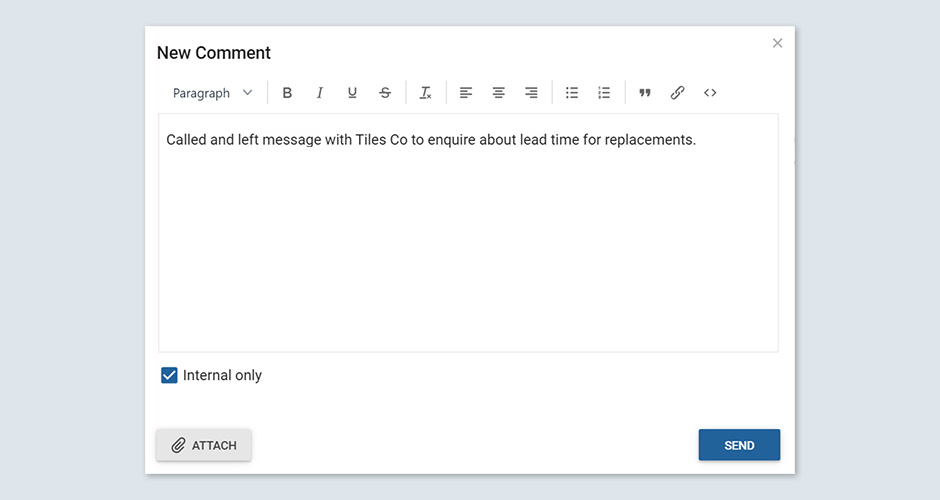
Sometimes you might want to make notes against defects you don’t want clients to see. You can now check the ‘Internal only’ checkbox before clicking ‘Send’.
Comments marked with the new checkbox, ‘Internal only’, are not visible to clients and no notifications are triggered.
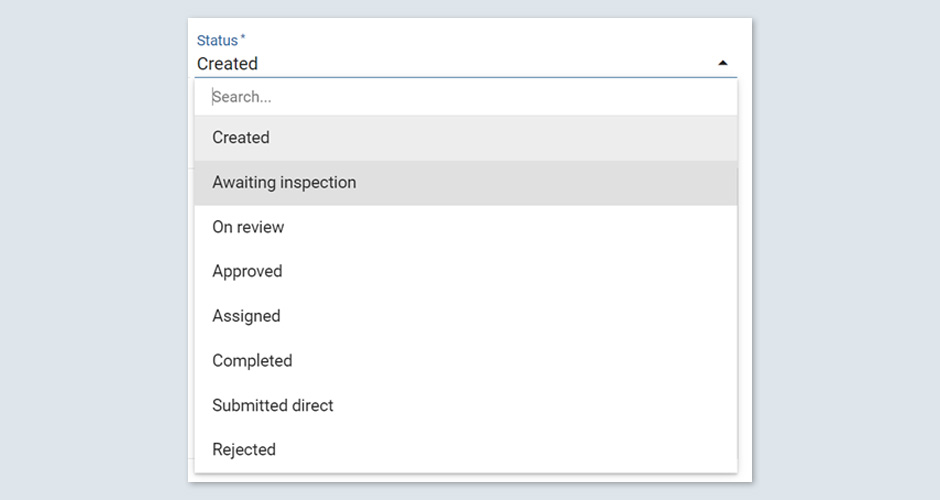
2 — NEW Maintenance Status – ‘Awaiting Inspection’
Sitting between the existing statuses, ‘Created’ and ‘On Review’, is a new status named ‘Awaiting Inspection’. Use this status to indicate an inspection is required before you will accept the defect.
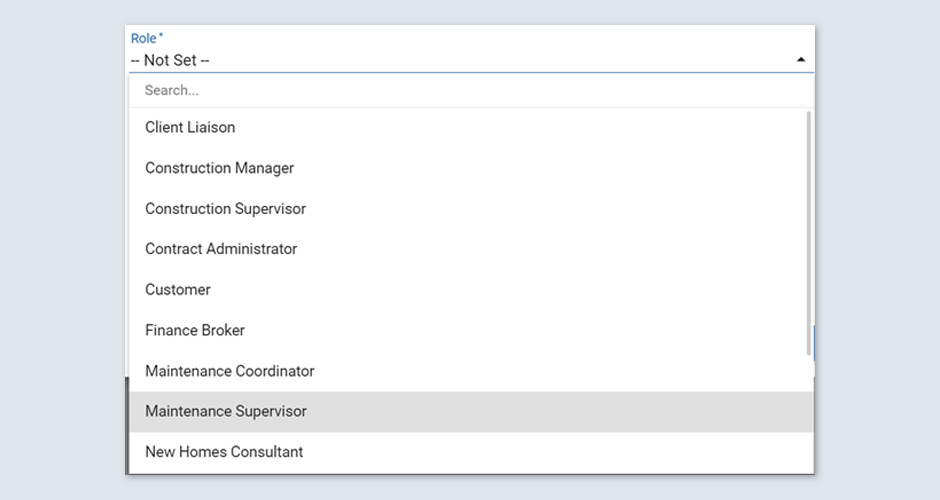
3 — NEW Maintenance Job Role – ‘Maintenance Supervisor’
We have a new Maintenance Job Role you can choose to display to client as a Contact — ‘Maintenance Supervisor‘.
Please note this is a Job Role only, rather than a Security Role.
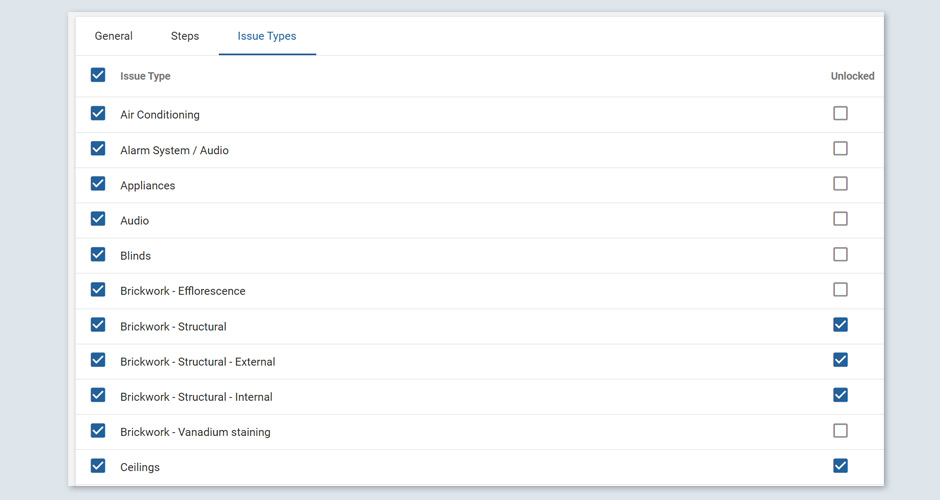
4 — NEW Maintenance Issue Type setting — ‘Unlocked’
Sometimes, you may have an Issue Type that has a warranty period that’s typically longer in duration than your standard Maintenance period. Any defects in this category you won’t want to fall into a ‘locked’ state after the standard Maintenance period officially ends as clients will still need to report them through their Maintenance Portal.
Unlocked Issue Types have permission to be logged after Maintenance defects have all been submitted, and/or after Maintenance is ‘locked.’
To set an Issue Type to ‘Unlocked,’ navigate to your wizard template, click the Issue Types tab and tick the Unlocked checkbox next to the Issue Type(s) you wish to unlock.
Note you will immediately receive an email notification if any defects are submitted under an Issue Type that has been unlocked.
We’ve greatly improved our 3D experience: faster access via high compression that reduces the size of 3D models while preserving the visual quality of your original models. Our high-quality rendering performance on both desktop and mobile devices is maintained.
2 — Active Directory (AD) Authentication
We’ve introduced Windows Active Directory (AD) Authentication protocols to enhance overall security that secures Constructive from unauthorised access. Streamlining user and rights management, AD Authentication simplifies your IT administration via Single Sign On (SSO) and enables authorised users and services to access Constructive securely.
Please contact your Client Success Manager if you’re interested in setting up AD Authentication.
3 — Progress Screen Improvements
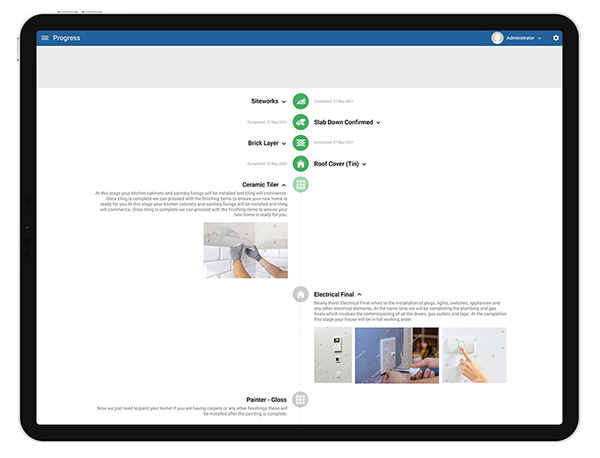
We’ve updated the Customer Portal Progress screen design with auto-expanded educational descriptions of Progress Tasks not yet complete to provide greater visibility and encourage clients to read descriptions and view images and videos. It’s now simpler for clients to visually understand via the interface what has been completed on their build and what’s coming next.
Please note, completed Progress tasks will remain auto-expanded in the Progress screen for 7 days.
4 — 3D House Model ‘Secure’ Setting
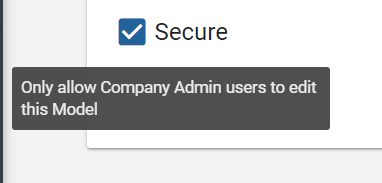
From your feedback, we know some 3D house models are used as base models utilised across many jobs. To stop these being accidentally edited by Contract Admin users on one job and affecting them all, we’ve introduced a ‘Secure’ mechanism that only allows Company Admin users to edit or save changes to these models.
5 — Item Re-Naming Field Improvement
The Item description re-naming field has been made larger to display the full description text. It’s now easier to see what you’ve entered and reduces the chance of accidental typos.
6 — Bug fixes
3D Add Decoration Error Fixed ‘access denied’ error when Company Admin or Contract Admin adds decorations to a house model.
Disabled Message Notifications Fixed issue where disabling Job Emails from a client incorrectly disabled Message notifications to builder.
Constructive Maintenance — Efficient Defect Management: Reduce incoming emails and calls by empowering clients to log defects and keep informed of their status within your secure, branded Maintenance Portal. Request a Demo >
Maintenance Submit When a client has completed logging their Maintenance issues, they can now click a ‘Submit’ button and send you a final list of defects.
Once submitted, a client’s Maintenance is set as ‘locked’ which means clients can no longer add new defects and are displayed an advisory warning message. Clients may still review their issues and add additional information to these, if required.
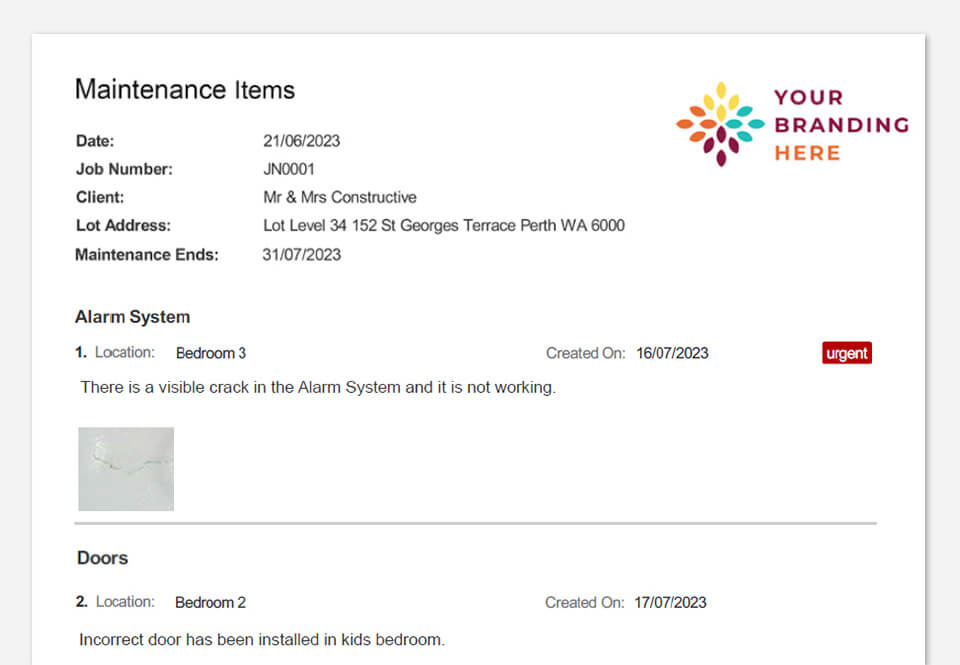
Maintenance Outstanding Items Report Once Maintenance issues are submitted as detailed above, a Maintenance Outstanding Items Report —with your logo — is automatically triggered to be emailed to both your nominated contact in your building company, for instance, your Maintenance Supervisor, as well as your client. It is also auto-generated and emailed when the Maintenance period ends on a job.
This useful report allows you to conveniently review all the currently outstanding Maintenance items that have not been completed and have not been rejected by you.
The Outstanding Items Report details each outstanding defect, plus its location, when it was created, thumbnails of any images included and an indication if the issue is urgent.
Maintenance Builder Notification We’ve added an automatic email notification to update you when a client adds a message or makes a change to a Maintenance item, so you won’t miss any activity and can action anything required right away!
Maintenance (Optional) Requires Attachment We know you need thorough information about a defect before you can adequately take action, so we’ve added an optional setting requiring clients to append an attachment (for example, a photo) before they can log the issue. You can choose during setup which issues, if any, will require attachments before your company will accept them for review.
Maintenance Dates Recording key dates against each job for Maintenance events for your records and to automate functionality to make the maintenance period more efficient for your team — plus the generation of data for reporting and filtering.
2. Message Settings Improvements
All Job Statuses and all Job Role types are now included in the drop-down selections in Message Settings.
To make adding text and/or images in the free content area in an Item Selection more efficient for clients, we’ve relocated the search/filter bar from above the content box to directly above the selections.
4. Bug Fixes
Fixed Access Denied error when copying Selections from one job to another
Deleted jobs will not receive progress updates
Fixed Selections Submit report to correctly show Notes
Removed Show Builder/Client Notes from Report generation modal pop-up and added “Show Builder Notes” to selection layouts.
We’ve released several enhancements to the Engagement page to help you monitor engagement over time, as well as views and time in Modules:
Engagement by Month table
Page Views by Module and Minutes in Module per Job
New Registrations & Notifications sub-page This new sub-page now houses Registration-related visuals. There are also three new data points included:
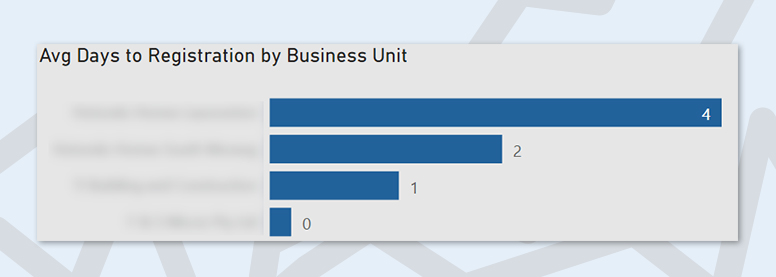
Average Days to Registration — See how long it takes on average for clients to register and use this to work towards improving speed of client registration.
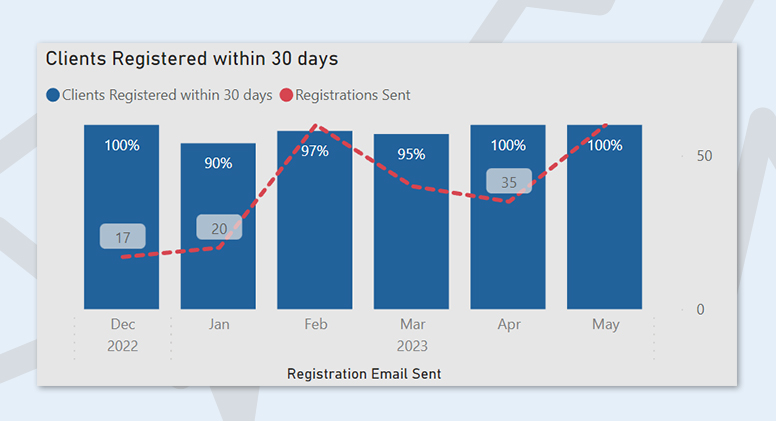
Clients Registered Within 30 Days — Monitor how many clients register within a 30-day period.
Average Days Since Last Notification — Use this to ensure clients are being updated on a regular basis.
2. Price Configuration, Selection Price Reference
Retail price references have now been added from suppliers, Winnings and Reece.
3. Minor Updates
Switch between Brand and Business Unit in by Brand visuals throughout the report via the new buttons.
Added Days Since Last Notification column to the Job Details table.
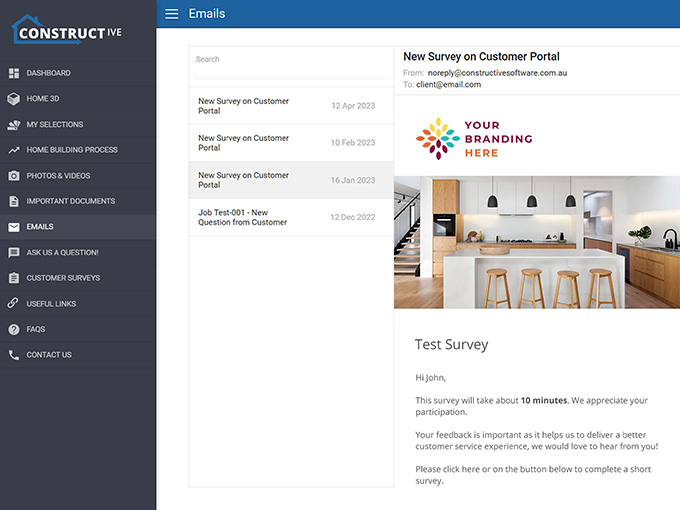
The new Client Emails card displays to your clients all emails on their job sent to them from the Portal. This will enhance your customer experience through transparent communication, digitally collating all email communications a client has received in one place — no more searching through inboxes and folders to find a past email.
Emails are displayed in a chronologically descending list and detail the subject, date and who the email was sent to, along with the contents of the email.
Please note:
Client Emails are turned off by default. If you’d like to utilise this new feature, please contact your CSM to turn Client Emails on in Settings.
Only emails with the following successful statuses will appear in the list: Sent, Processed, Delivered, Opened
Client Emails won’tshow email sending statuses to your clients.
2. Selections Reports – Additional filters for Client and Builder Notes
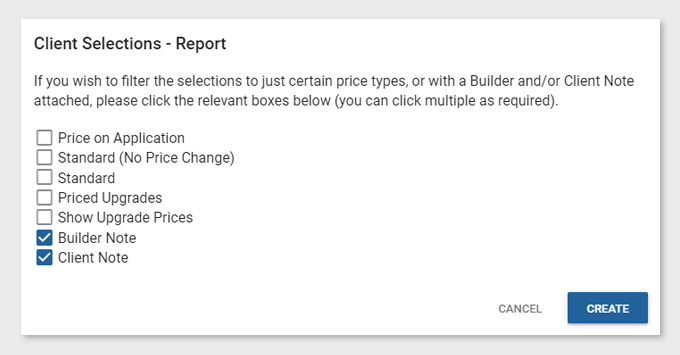
There are two new checkbox filters available in the existing Selections Reports. You can now choose to include any choice that has a Note attached, helping you further curate bespoke, purpose-customised reports.
Please note:
Client and Builder Notes report checkbox filters are selected on by default. For example, if you wish to exclude items with Client Notes attached, please unselect the checkbox before creating your report.
You can select one, or both, Client Note and/or Builder Note.
3. Selections Reports — Mood Board Format combines same item within the same selection group
If the same item has been selected multiple times in the same selection group, it will now combine into one entry, creating a more succinct and organised Mood Board Report.
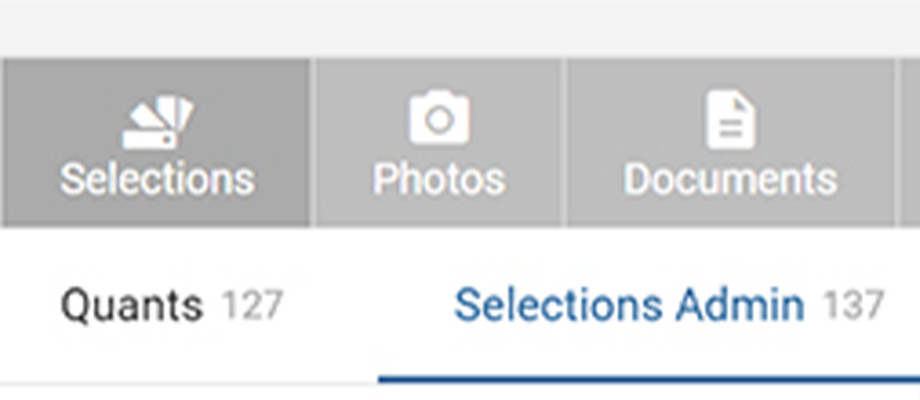
Within the Jobs card, the Selections tab is now its own main category within the grey-coloured section located at the top of the screen, (previously in the Job Details tab). It displays the same selections details as previous.
2. NEW Bulk Changes, View by Area and View by Layout
You asked – we listened! The new Selections Admin tab has been created to maximise efficiencies to make your work faster, easier and less complicated while setting up jobs for your clients.
Please view the following video for a summary of this new tab and the new bulk changes updates.
Note: The Client Selections tab shown in the video has since been renamed to Selections Admin.
Selections Admin tab You’ll now rarely need to go into Client View as you can select items, add builder notes, bulk override prices and bulk hide choices — all directly within the new Selections Admin tab.
Bulk changes Make changes in bulk all at once. Select all within a group, or multiple individual choices and click the Bulk Actions button at the top right of the screen. You can now also bulk hide and bulk show choices for clients.
Change the viewby Area Work through selections in an Area as required.
Change the view by Layouts As per the same views as set up in your Reports, for example, Client Selections, Addenda, Painter or Construction Schedule.
Live selections editing There is no need to hit ‘Save.’ Constructive will auto-save your changes as you go along, similar to auto-save when in Client View.
Quants in the same screen For changes to quants as you go, you can easily navigate to the Quants tab within the same screen. Note you will still need to Save and Reload Selections when making changes to quants to ensure everything is up-to-date.
If you have any questions about these changes, please contact your CSM.
3. Bug fixes
Reload Selections now correctly automatically deletes items.
Progress emails are no longer sent when updated as complete regardless of completion date.
You are now able to select child job after switching between parent jobs.
You can now create new users with an existing username.
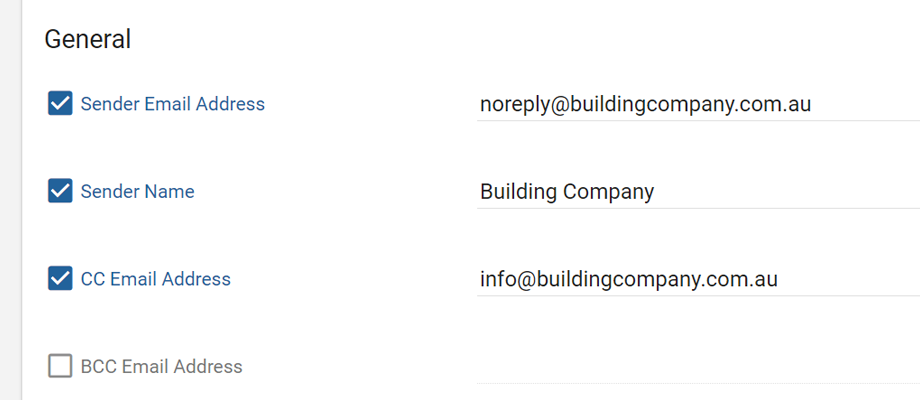
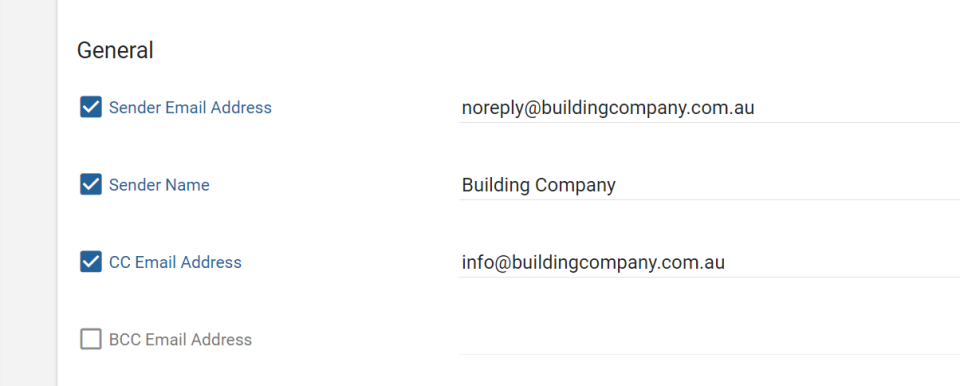
You now have the ability to CC all emails to a global email address, helpful for systems infrastructure that requires CC, rather than BCC.
You can find this new option under Settings, General above the existing BCC Email Address.
Please note, you can only CC or BCC, not both.
2. Bug Fixes
Users are no longer incorrectly auto-locked when linked to cancelled jobs If a user was linked to both cancelled and uncancelled jobs, (and the setting had been turned on to auto-lock users linked to cancelled jobs), they were still being locked, despite having a live job. This is now fixed.
Duplicating housetype no longer includes deleted areas Deleted housetype areas are now no longer incorrectly copied over when a house type is duplicated.
.obj Model processing scaling of UVs New model processing texture scaling issues fixed.
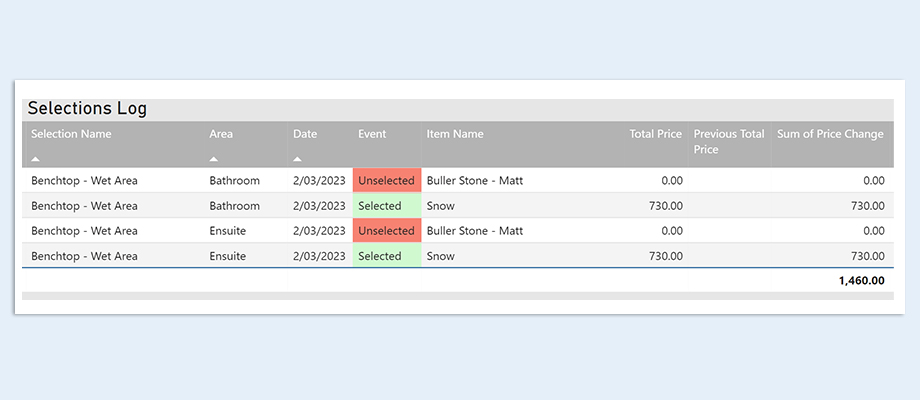
Selections Log, a new feature of Intelligence 2.0, displays a log of selected, unselected and price change events, allowing you to monitor exactly what clients are selecting and changing their minds about.
Please note:
The log is based on selections history snapshotted each night, so details of selection changes within a day are not available.
For unselected events, Selections Made By is not available.
2. Selections Price Reference
An addition to the Price Configuration page, this new table allows you to see your selection template choice prices and assess them against both your standard in-spec pricing as well as an average retail price.
Here’s how you can get the most out of the Selections Price Reference table:
Filter by a single Specification to show the Relative Price — which is the choice price relative to the standard in-spec item price.
The Reference Price column shows the average retail price across the supplier retail price data Constructive has acquired. Please note: Currently, retail price data is via supplier The Blue Space. We will be adding more suppliers in the coming months.
Use the Price Reference button to show item choices where a retail price reference is available or use the Price Above Reference button to show item choices where the Relative Price is above the average Reference Price. Drill through to see the details of the reference prices.
3. NEW Variation Cost Page
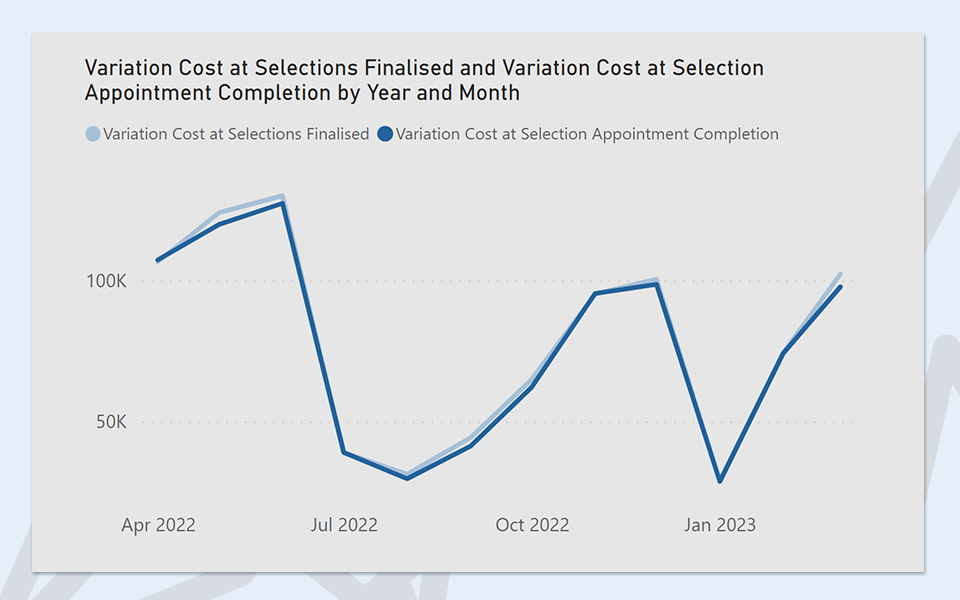
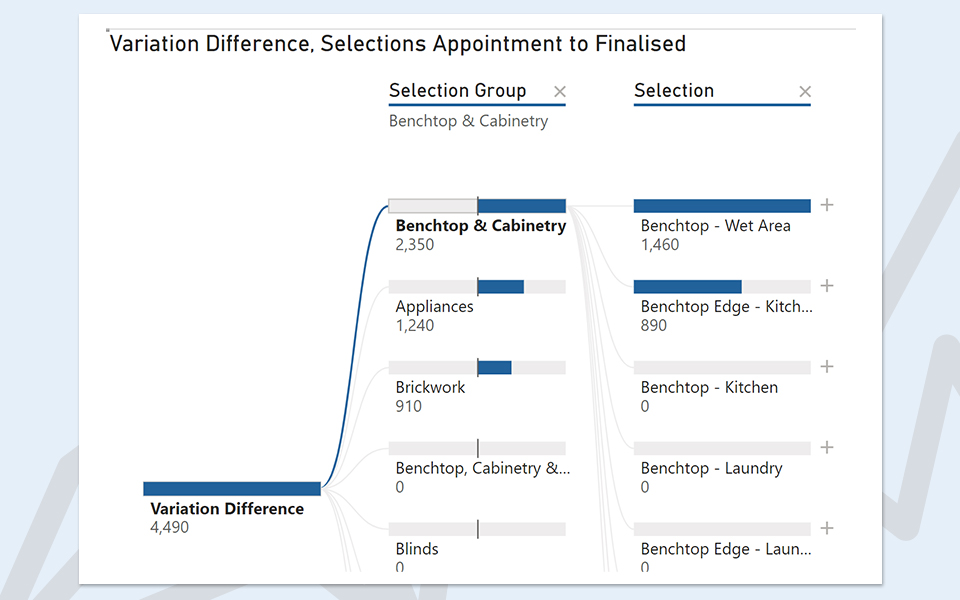
The new Variation Cost page gives you deeper visibility into variations so you can analyse and review the differences from various business units, brands, jobs, selections and items — as well as identify when variations occur after the Selections Appointment, helping you recognise where you can create efficiencies, increase upgrade income and improve processes.
Analyse the variation cost across jobs.
See the difference in variation cost from Selections Appointment Complete to Selections Finalised.
Break down the variation cost difference by Business Unit, Brand, Selection, Item and Job.
Drill-through to a log of selection changes (snapshotted nightly).
Please note, variation difference analysis requires the following progress tasks completed on jobs:
Selections Appointment completed. Dates are taken from the progress task matching the name in Constructive Settings: Selections: Prestart Meeting Progress Item Name.
Selections Finalised. Completed dates are taken from manually identified progress tasks, usually named “Final Documents” or “Final Plans.” If you believe the incorrect progress task has been used, please contact your CSM.
4. Navigation Changes
Top Choice Groups page is now a button on Top Item Choices page.
Top Items by Upgrade Price and Top Selection Groups by Upgrade % pages moved to visuals on the Selection Upgrades page.
Price Overrides page is now a button on Price Configuration page.
5. Minor Changes
Added new counts to the Photos page showing the count of Construction jobs that have no photos added in 30 days, 90 days and 180 days.
Added Last Photo Added On column to Job Details table.
Added option to show Photos by Client Liaison.
Added Client Email column to Selection Detail table.
We have improved frame rate and initial loading performance, translating into a substantially smoother, faster experience for your clients making selections in 3D, (via an approximate 80% decrease in transferred and download resources, and a 52% decrease in GPU draw calls).
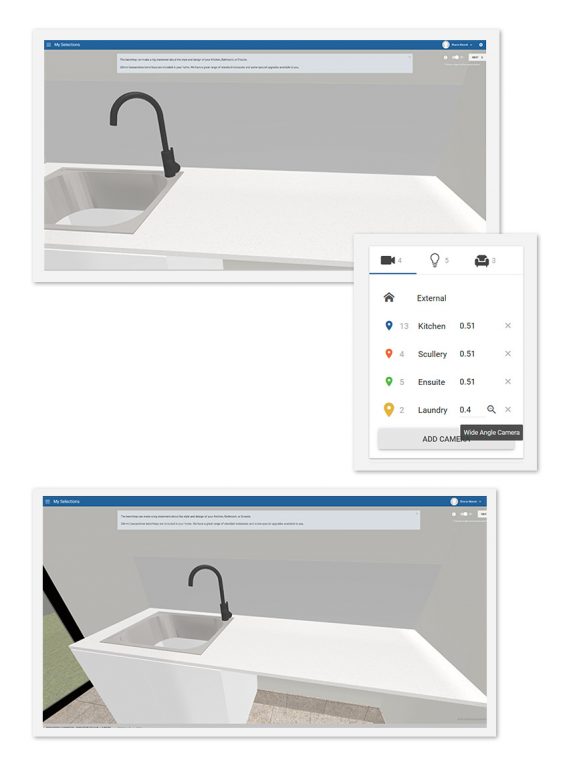
2. NEW Internal 3D – Optional wider lens view for internal cameras
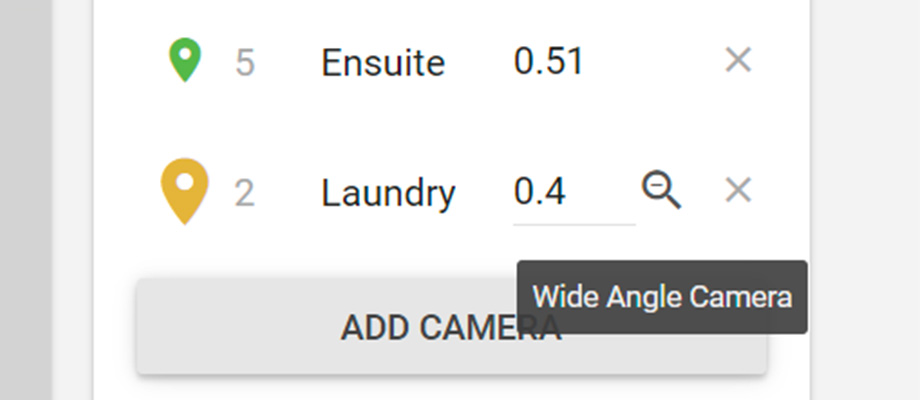
Previously, smaller rooms — such as a laundry, or ensuite — were difficult to view in full when visualising Selections in 3D. You now have the option of increasing the field of view of internal cameras to show more of the room and help your clients gain a better visual understanding of the space.
Once you have set up your cameras, simply click the magnifying glass to activate the wider lens view.
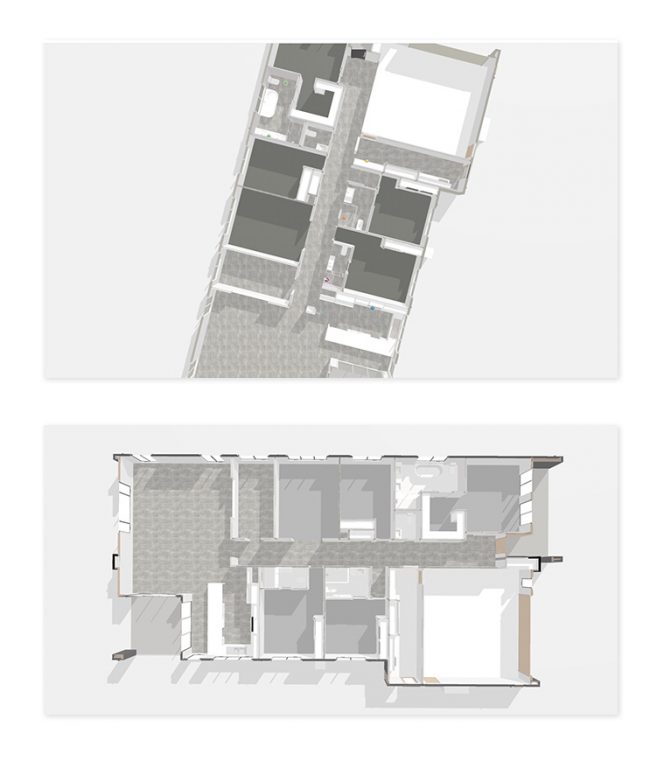
3. NEW 3D – Auto-correction of house model rotation during IFC processing
Often, loaded IFC models may be pre-rotated in 3D programs, such as Archicad or Revit, to mimic block direction.
Constructive 3D will now automatically retrieve the angle and apply rotation to your model to face true North, reducing common Internal and External 3D rotation issues, such as incorrect floor tile direction.
4. Internal 3D – Model Mapping – Add Area to Model Mapping Template
You can now add an Area to your Model Mapping Template within Internal 3D. Please contact your Client Success Manager for set up and training.
5. Bug Fixes
3D – Model Edit – Missing roof visibility correction If your 3D model has loaded with part of the roof missing, you now have the ability to fix this in the Model Edit screen.
Please ensure the roof is mapped to the correct dimension type of Colorbond, Colorbond Roof or Roof Tiles as per your Selection Template. Once the dimension type is added, click on the three-dot kebab menu on the missing item and select Fix missing roof parts.
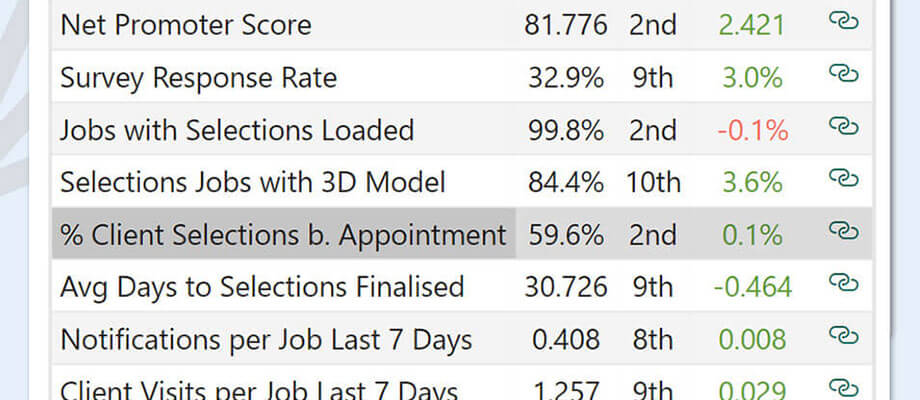
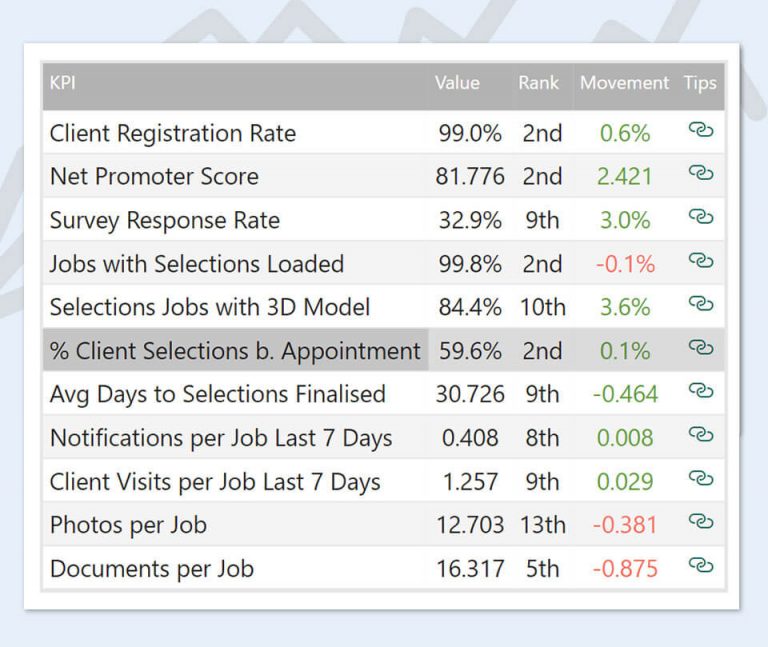
1. NEW Percentage of Client Selections before Appointment
Intelligence 1.9 features a new Online Engagement KPI showing you the percentage of the client visible Selections that were selected by a client up to one day before the Selections Appointment Completion date. This is averaged across jobs which have completed their Selections Appointment.
With this data, you can benchmark your results and strive to increase your percentage to reduce the amount of time spent in the Selections appointment and speed up the pre-Construction process.
Percentage of Client Selections before Appointment is now available on the Online Engagement KPIs page, with history from 3 February, 2023.
2. Other Updates
Percentage of Client Selections before Appointment added to the Metrics for active jobs on the Engagement page.
Percentage of Client Selections before Appointment added to Job Details.
180 day historical rank added to Online Engagement KPIs page.
Added a drill-through from Documents per job by Client Liaison to Job Document Details.
Selections by Month page now shows the last two years by default.
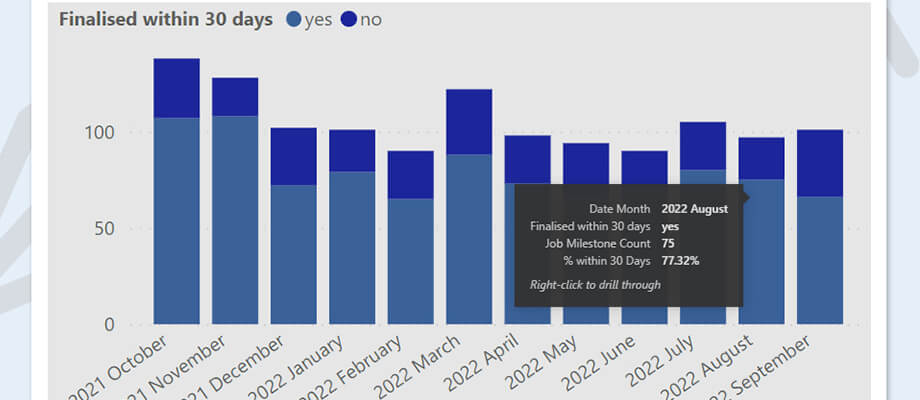
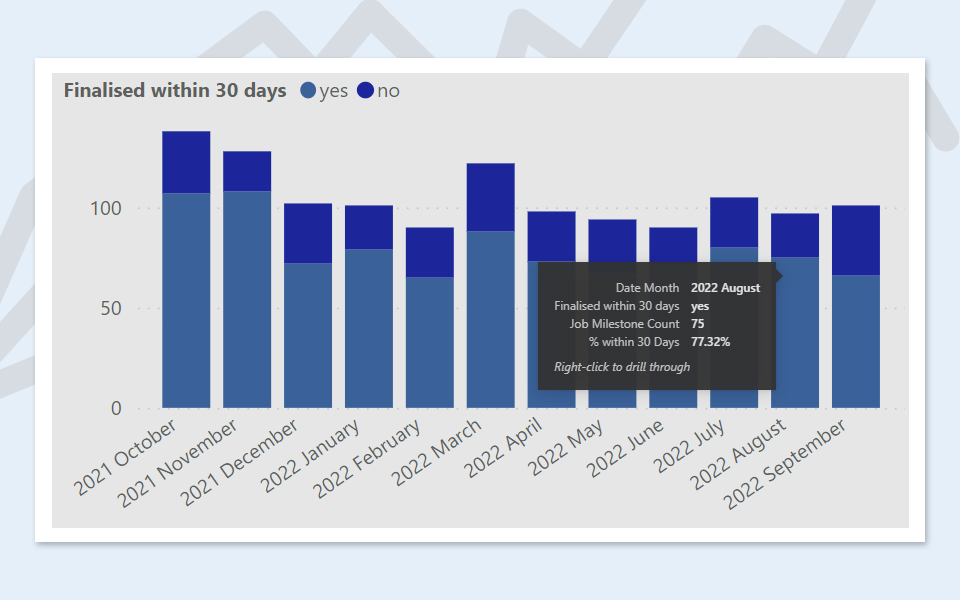
Intelligence 1.8 features a new SelectionsTimeframes page, providing you with data to benchmark and monitor your completions over time so you can look at ways to speed up your clients’ journeys to completing Selections and assess Selections Consultant performance.
1. NEW Selections Timeframes
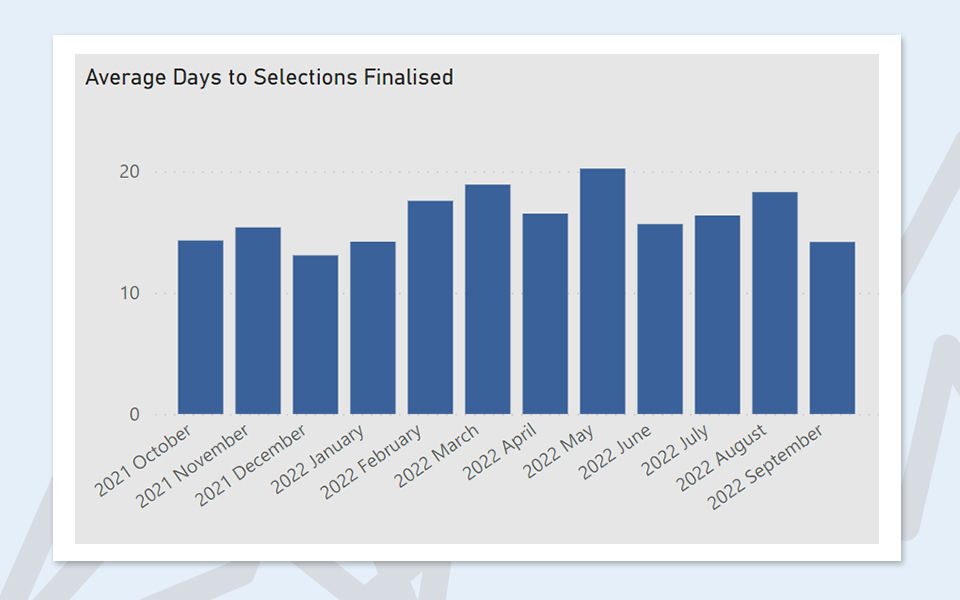
The new Selections Timeframes page tracks the counts of Selections Appointment completions over time and the number of days until Selections are finalised.
Please note: To display meaningful data on the Selections Timeframes page, you must have Progress implemented and maintained on jobs in Constructive, including completion dates for Selections Appointment and Selections Finalised / Final Documents / Final Plans tasks.
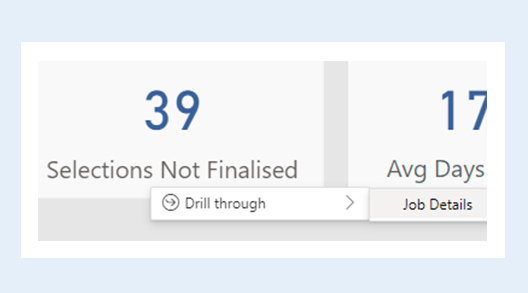
View the Selections Appointment Count by Finalised Timeframe: Same Day, or within 15, 30, 60 and 90 day time-frames. You can also drill-through to Job Details.
Intelligence can help you monitor Selections Consultant performance. View the Average Days to Selections Finalised by Selections Consultant, and over time.
2. Other Updates
Online Engagement KPIs Added Average Day to Selections Finalised KPI.
Engagement page The Active Client count is now a monthly display, showing the last 6 months, (previously daily, showing the last 30 days).
Job Details new columns Selections Available to Client On, Selections First Locked On, Selections Finalised On and Days to Selections Finalised.
Documents page You can now switch between Documents per Job by Contract and by Client Liaison.
Surveys Surveys with non responses rate will now show on the Response Rate by Survey Name chart.
Discontinued Item Selections table Added a new Manufacturer column.
Selection Details Added a new Product Code filter.
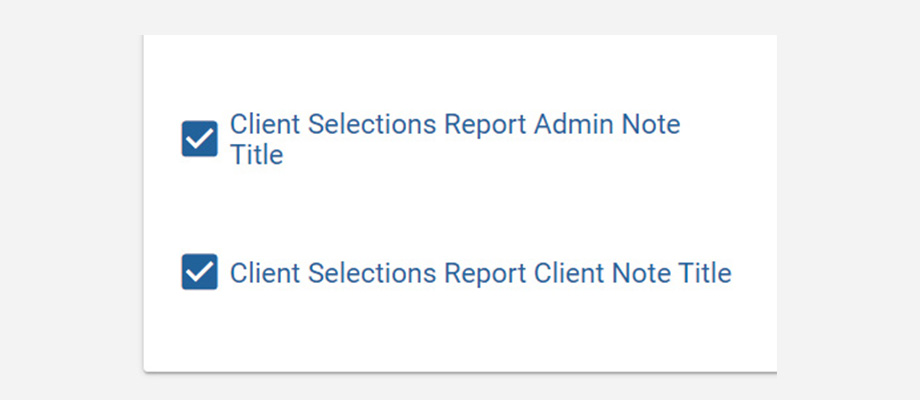
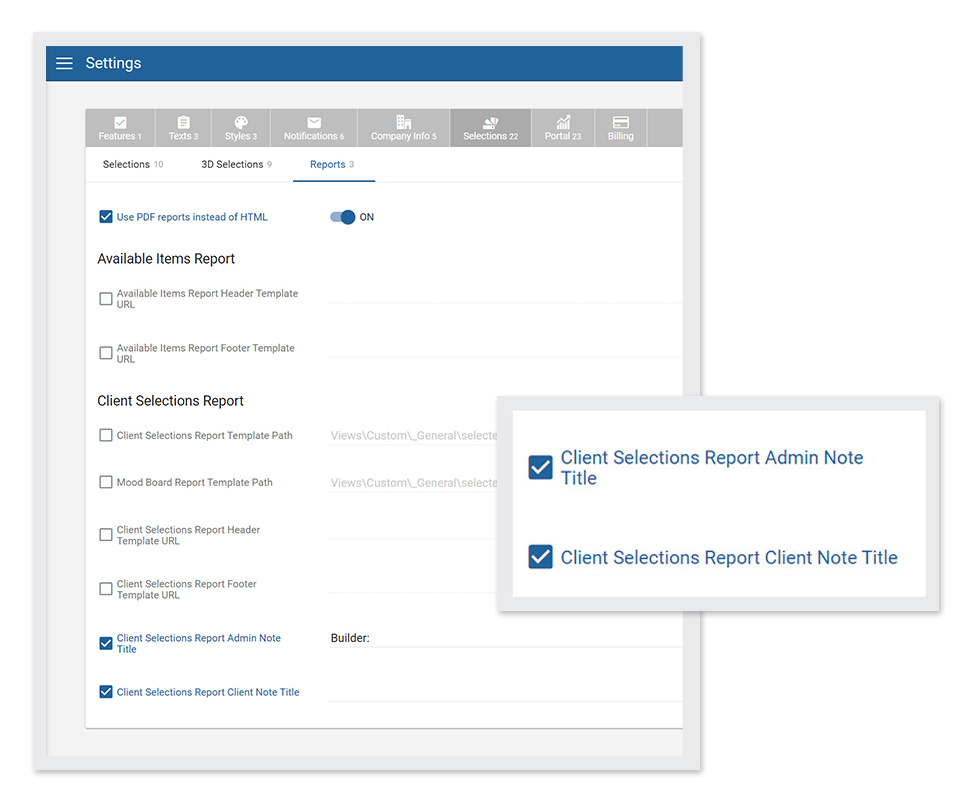
1. Selections Reports — Notes Titles As a Builder admin, you can now customise Notes Titles for inclusion in Selections Reports. For example, you might configure the Notes Title to be Builder or Admin — or choose to have no Notes Title at all.
To ensure this Note Title appears on your Selections Report, navigate to Settings / Selections / Reports, and tick Client Selections Report Admin Note Title and/or Client Selections Report Client Note Title.
2. Items — New actions: Suggested Changes and Suggest Discontinued
Previously, you would need to go through the Item Library or submit a support ticket to suggest changes to items or indicate their discontinuation.
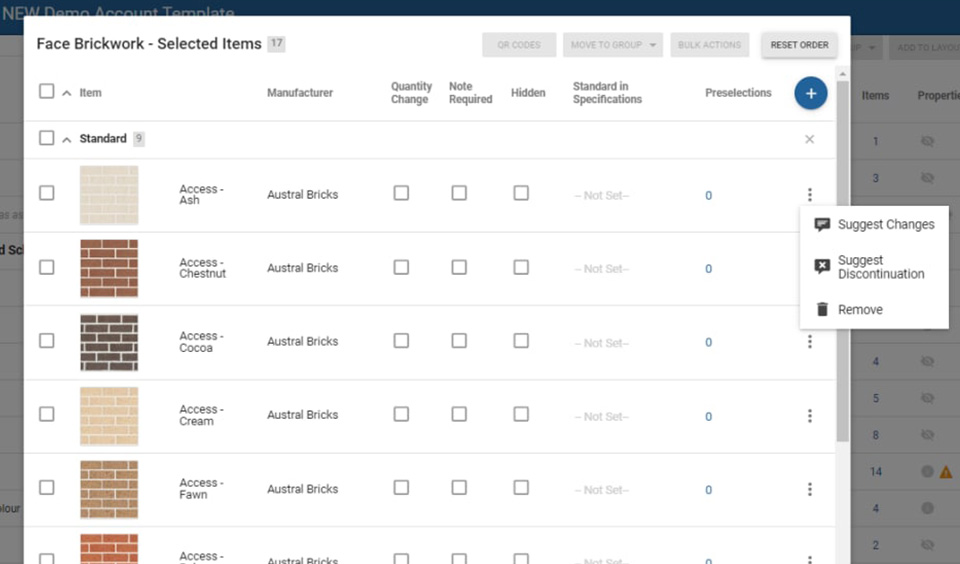
Now, to speed up the process, you can suggest a change of image or information — or suggest an item has been discontinued — directly within your Selection template in Constructive.
Click the 3-dot kebab menu on the right of an item’s line to select Suggest Changes or Suggest Discontinuation. Your suggestion will be delivered directly to your Client Success Manager for review.
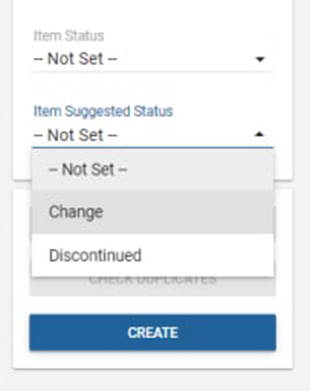
3. Items — New actions filter: Item Suggested Status
You can now filter items by Item Suggested Status to view by Change or Discontinued.
4. Bug Fixes
Selections – Price Text Override: My Selections and Reports now display both the price (non-zero) and custom text.
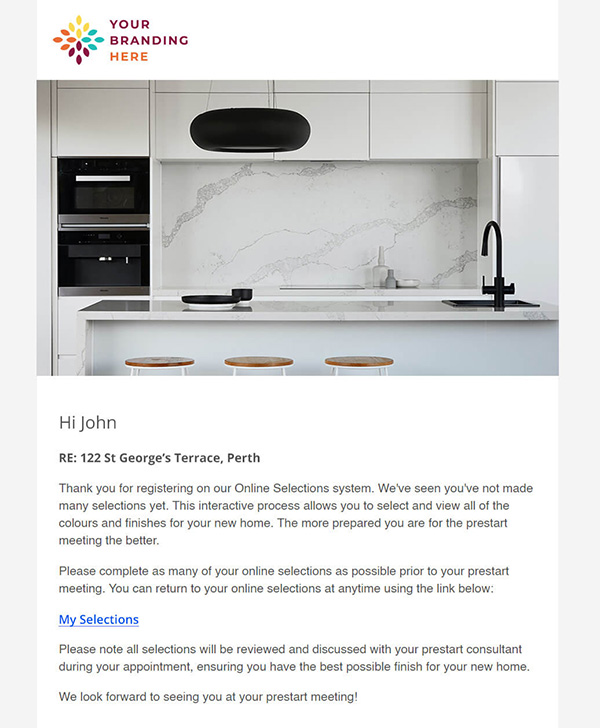
1. Notifications — Low Selections Reminder Weekly Email Automate a weekly follow-up to keep your clients’ Selections process moving rapidly with the new Low Selections Reminder — a customised, branded email reminding clients to make Selections if they have less than 20 Selections chosen. The email goes out once a week on a Monday and can be toggled on or off.
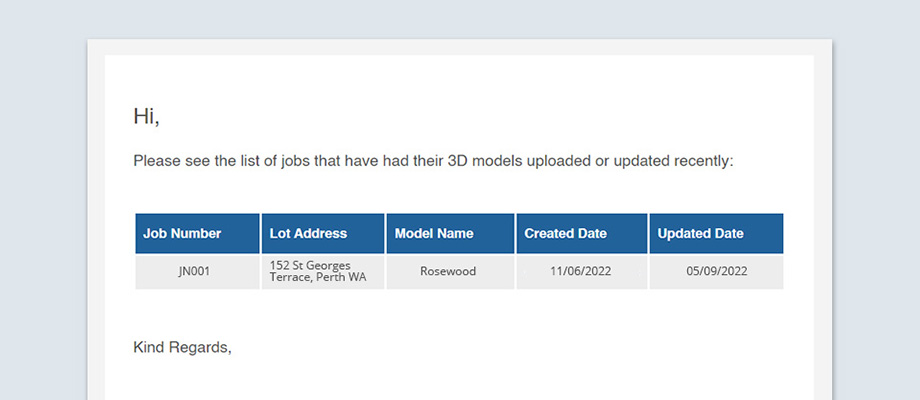
2. Notifications — New 3D Model Notification Daily Email Keep track of what’s changed with the new 3D Model Notification email — a summary of new models as well as what has changed on existing models. The email is sent daily to Contract Administrators and can be toggled on or off.
3. House Type Admin — Dimension Ordering Within Areas and Dimension Order You can now drag and drop Dimensions within Areas (reflected in Job Details Quants) to easily re-order to suit your workflow. This is especially useful when you have Selections in multiple Areas and you’d like to guide clients through these in a particular order. For example, selecting a benchtop first in the kitchen, then the laundry, then the bathroom.
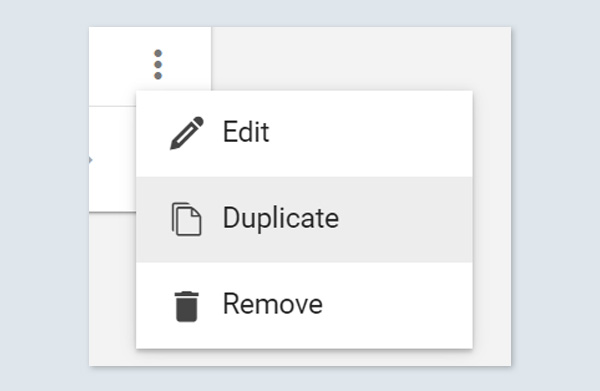
4. House Type Admin — Area Duplication Quickly duplicate areas by clicking the 3-dot ‘kebab’ icon on the right and choosing Duplicate.
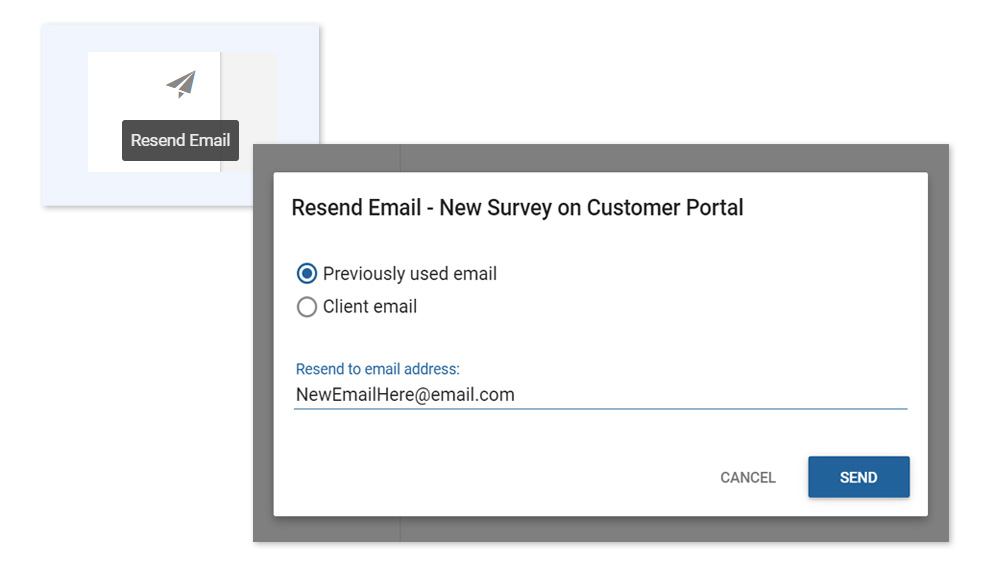
5. Emails — Resend to a New Email Address Need to re-send an email to a new email address not previously used? Now you can conveniently send on an existing email to someone new by clicking the re-send button and typing their email address into the new input field.
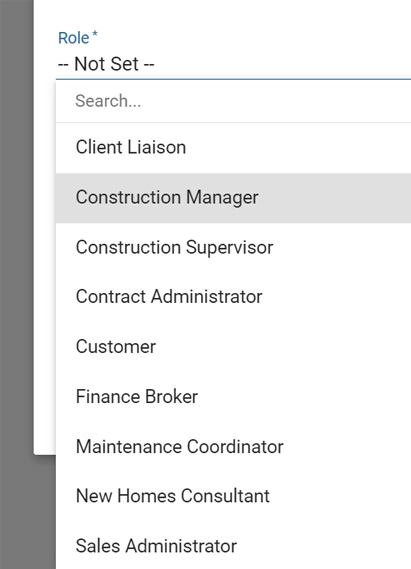
6. Job Contacts — New Construction Manager Job Contact Construction Manager has been added to the Job Contact roles for your clients to communicate with.
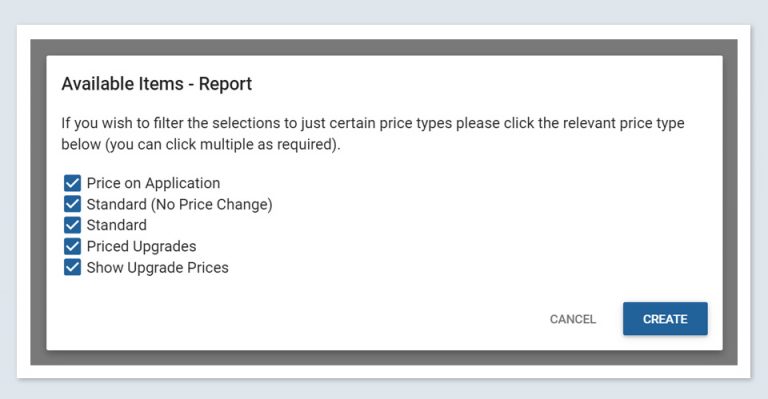
7. Selection Reports — Available Items Report Pop-Up Customise your reports to suit your needs. The Available Items Report now shows a Pop-Up modal box where you can tick what price type(s) you’d like to include before generating the report.
Intelligence 1.7 is focused on the new Selection History feature, a daily snapshot of the history of items chosen for a Selection, now accessible directly from Intelligence.
Has a Selection accidentally been chosen? Use Selection History to go back and find what the previous Selection was without having to contact your client — or your Constructive CSM.
Easily double-check any errors that come up on site by viewing the history of previous Selections.
1. NEW Selection History
Drill through from Selection Detail to the new Selection History to view a daily snapshot of items chosen.
Please note the following Selection History limitations:
Selections which didn’t have an item selected in the most recent snapshot will not be available in the table; therefore, their history will not be available in the report.
History snapshots are taken each evening, so details of Selections made within a day are not available.
It’s not possible to determine who unselected an item.
2. NEW Selection Appointment Complete Filter
This new filter can be found on the Selection Detail page, allowing you to quickly view selections for jobs that have not completed their Selection appointment.
Note the default filter setting is “True” — unselect “True” to display Selections for all jobs.
If you don’t use the Progress module, or your progress template does not include a Selection Appointment task, this filter will instead filter jobs whose Selections are locked.
3. Other Updates
Added column Elevation to Job Details and Selection Detail.
Added column Price Override Text to Selection Detail table.
Price Overrides, useful to identify items whose price is regularly overridden, (to a dollar figure or to standard), and may need their price configuration updated.
Price Configuration, allowing you to view, filter and export price configuration.
These pages will give you greater insight into the pricing manually entered during Selections and old pricing requiring updates. If any duplicate pricing exists, Constructive automatically alerts you via email.
We’ve also added an Overall NPS card to the NPS page and updated the Engagement page with a new date range filter to allow you to filter Page Views by Progress Completion and Module.
1. NEW Price Overrides
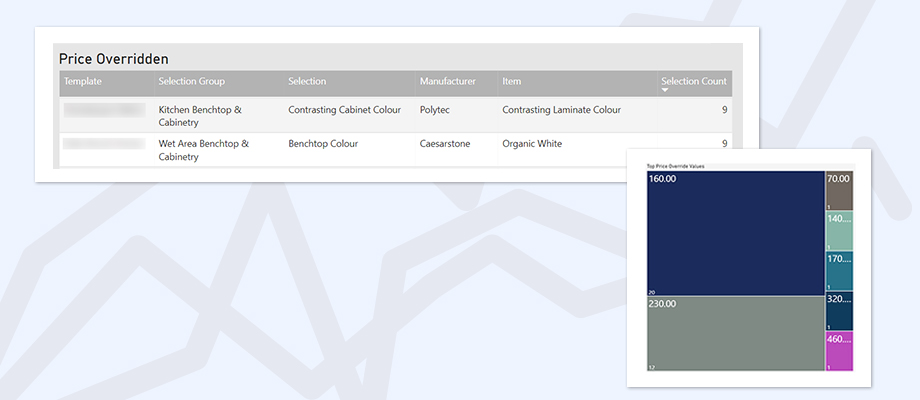
The new Price Overridden table highlights items that have been most often overridden to a dollar figure when selected.
Hover over a row in the table to see a tree map distribution of the override prices.
The Overridden to Standard table highlights items which have been most often overridden to $0 when selected.
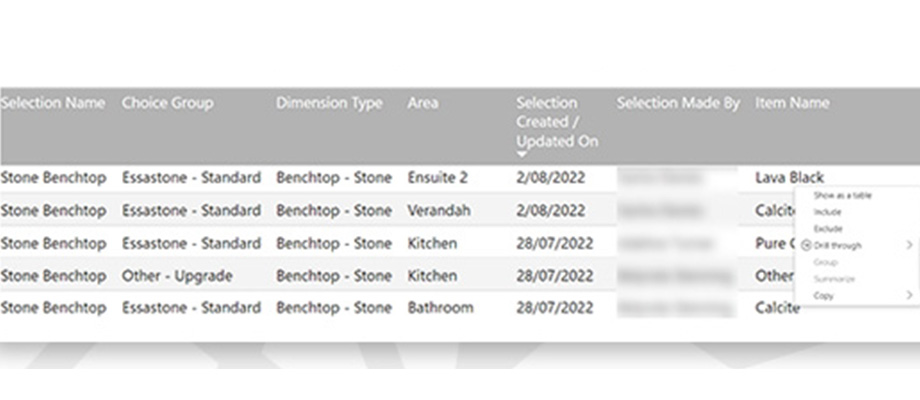
Right-click in either table to drill through to the override selection detail.
2. NEW Price Configuration
View, filter and export price configuration. Hover over a row in a table to see the Template Selections the item appears in.
There are three views of price configuration available:
All Prices – Displays all current price configuration.
Duplicate Prices – Current item price entries where there is one or more identically configured price entry. Ideally, there should be no two price entries for an item with the same Business Unit, Brand, Region, Dimension Type and House Type combination.
Aged Prices – Current prices sorted by the number of months since they were last updated. Use the Price Age Months filter to view prices older than a specified number of months.
3. Other Updates
NPS page: Now features an overall NPS card.
Engagement page: We’ve added a Page View date range filter to allow you to filter Page Views by Progress Completion and Module.
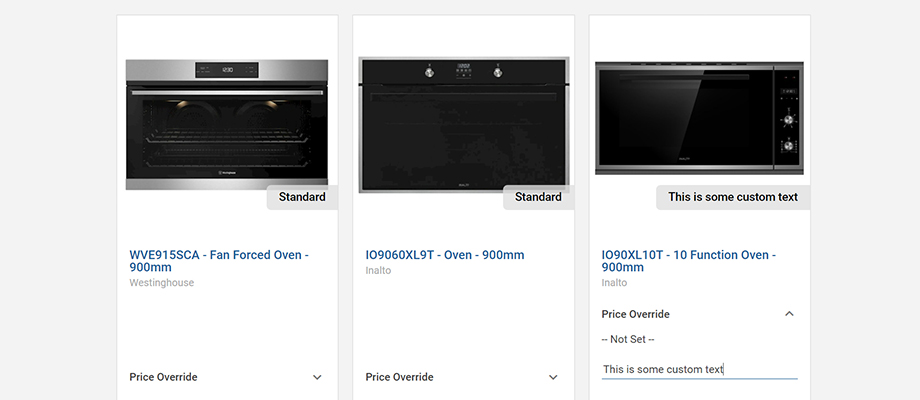
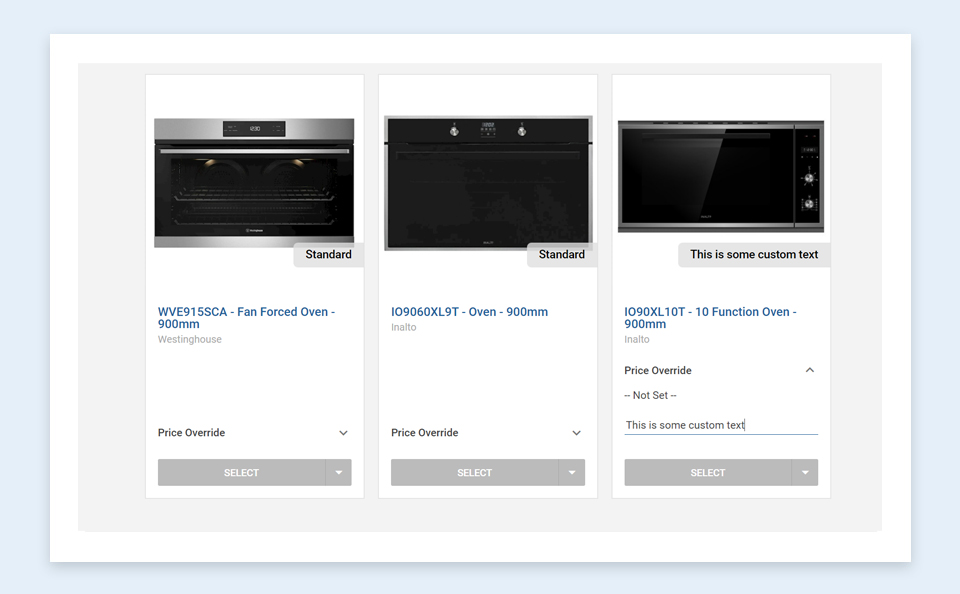
1. Selections — Price override with text Previously, price overrides displayed a dollar value. You now have greater flexibility to create a price override containing your own, custom text.
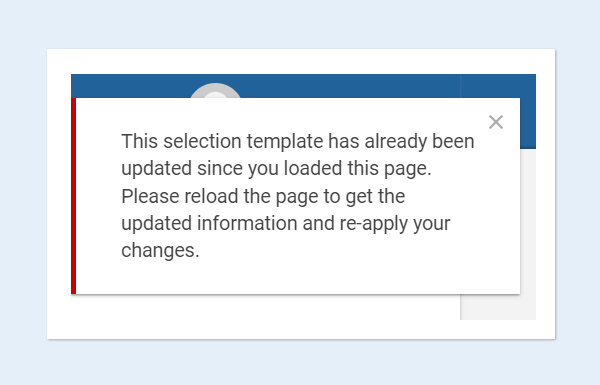
2. Job and Selection Templates — Saving check When making changes to Job and Selection Templates, you’ll now be notified when another user has made changes concurrently and saved before you, ensuring you don’t erase their recently saved work.
3. Messaging — Multiple Reply To email addresses Clients can now set up multiple email addresses within their account settings. This means when you reply to a client’s message, your reply will be emailed to all the addresses listed in the client’s account.
4. User interface enhancements
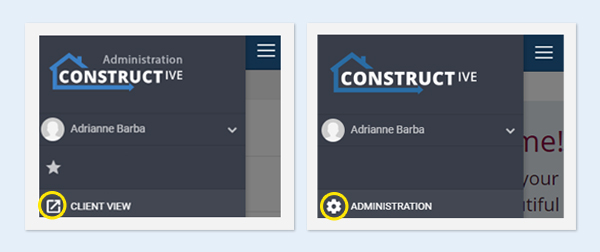
When you’re using Constructive from a mobile device, you can now easily switch between Admin View and Client View via the hamburger menu.
Within Selections, various user interface enhancements have been made in Simple View.
5. Bug Fixes
3D Model Editing Screen — You can now add 3D objects in Safari; shape highlight and selection, (when the object is in a group of nested objects), are now fixed.
Job Listing — When the unit number is blank, a child job no longer shows its own Job Number in the greyed-out section below.
1. Item Documents — Attachment icon When an item contains an attached document — such as a product brochure or a specification, an attachment icon now appears in the top left-hand corner.
2. Reporting — Selections Report improvement Previously, when de-selecting a choice on a template with pre-selections, the item would still appear within the reporting paperwork. Now, if you de-select a choice that item will no longer appear in the report.
3. Bug fixes House Type Areas Order now retains correct order after saving. Job Listing — Selections now show as loaded on child jobs. Internal 3D — Mirrors now obey displacement of model in client view. Emails — Test setting is now the same as production.